Setting up and using a WhatsApp username
A WhatsApp username is an optional, unique identifier (for example @anna.smith) that lets people reach the account without the phone number being shared. WhatsApp is rolling the feature out gradually: where it is not active yet, the name can be reserved in advance. A phone number is still needed for registration; it just does not have to be given to everyone.
In this article
What a username is for, and what it is not
- Instead of the phone number: people who have not saved the number see the name starting with @ in chats, groups and calls. The number also disappears from earlier conversations with them.
- Not the same as the profile name: anyone can have the same profile name, but a username is unique.
- No searchable directory: the name can only be found by someone who knows it exactly, letter for letter.
- The number does not become secret: people who have saved it still see it, and messages can still be sent via the number. With the first message, the recipient may also see which country code the account was registered with.
- Optional: it can be created, changed or deleted at any time.
Which names are allowed?
If the name you want is taken, the app suggests alternatives; adding a number, a period or an underscore often turns up a free variant.
- Length: 3–35 characters.
- Only lowercase letters without accents (a–z), digits, underscores (_) and periods are allowed, but the name cannot consist of digits only.
- It cannot contain prohibited words.
- WhatsApp reserves some names for businesses, government bodies and public figures.
Creating or reserving a username
A reserved name is not visible and cannot be used until the feature launches in the region; a notification arrives when it does. If the setting does not appear, update the app and restart it; if it is still missing, the feature is not yet available in that location.
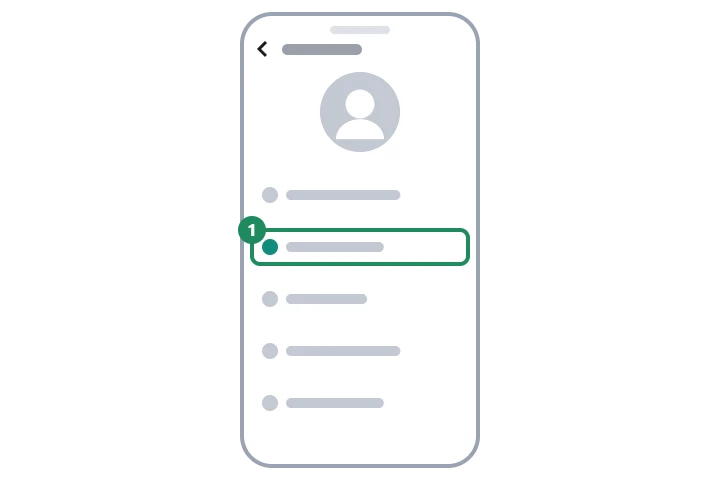
- On Android, open “Settings” from the ⋮ menu at the top right; on iPhone, open the “You” tab in the bottom bar, then tap your own profile.
- Choose “Create username”. Where usernames are not active yet, the “Reserve username” item appears instead; “Create username” follows after it as well.
- Type the name you want. If it is available, a confirmation message appears; if not, WhatsApp suggests similar names.
- Tap “Save” and then “Done” to confirm the name.
The same name as on Instagram or Facebook
If the WhatsApp account is added to the same Accounts Center as the Instagram or Facebook account, the name used there can be adopted: after “Create username”, choose “Use Instagram username” or “Use Facebook username”. Adding the account to Accounts Center is optional. If different people use the same name on the two services, on WhatsApp it goes to whoever claims it first. Later name changes are not synced; the name has to be changed separately in WhatsApp.
Starting a chat with a username
Your own name can also be shared as a link (the username after wa.me/) or with the WhatsApp QR code.
- On the “Chats” tab, tap the new chat icon, then the search field.
- Type the other person's full, exact username and tap the name that appears.
- If the other person has set a username key, it has to be entered as well; without it they cannot be reached.
- A call can be started the same way on the “Calls” tab; to add someone to a group by username, tap the group name and use “Add members”.
Username key: protection against unwanted messages
The key is a short code generated by WhatsApp. Once it is turned on, anyone who wants to message first via the username also has to know the key. No key is needed for people who have saved the number, people with an existing chat, members of a shared group, people who scanned the QR code, or people the account owner messaged first. If the account is linked to a Meta account that shows the owner is under 18, the key is turned on by default.
- In the profile, open “Username” → “Contact me via username”.
- Choose “People who know my key”; a new key can be requested with “Get another key”.
- Tap “Save key” to apply the setting. To turn it off, choose “Everyone” in the same place, then “Remove”.
Changing and deleting
In the profile, the name can be changed or deleted via “Username” → “Edit”. It can only be changed a limited number of times, and the old name may become available to others. A deleted name can be reclaimed within 14 days; after that, someone else may get it. More settings: WhatsApp privacy settings.
If it doesn't work
Will I keep my username if I switch to a new phone number?
Yes, if the switch is done on the same phone with the built-in change number feature: Changing the phone number in WhatsApp. According to the help, a username cannot currently be moved to another device.
“This username isn't available” – what does it mean?
The name is already in use, is reserved, is someone else's Instagram or Facebook name, or contains a prohibited term. If the reservation was interrupted by a network error, it can be tried again a few minutes later.
What should I watch out for if someone messages me via my username?
A message from an unknown person calls for the same rules as one from an unknown number: never hand over codes, passwords or money. The common tricks: Common WhatsApp scams and how to spot them.