Signing in to YouTube on a phone and a computer
YouTube has no password of its own: signing in requires a Google Account, and the same email address or phone number, password or passkey works as in Gmail. If an account has several channels, after signing in you also need to choose which channel to be active as.
In this article
Signing in in a browser
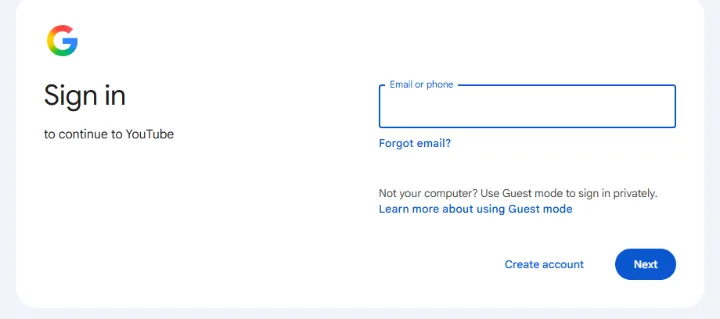
If there is no Google Account yet, a new one can be created on the same page with the “Create account” button. For a forgotten identifier, the “Forgot email?” option helps; for a forgotten password, Google Account recovery: how account recovery works. On a shared or unfamiliar computer, a private (incognito) window is a good choice, because the sign-in ends when the window is closed.
- On youtube.com, click the “Sign in” button in the top right. On a first visit, you first need to decide about cookies.
- On Google's “Sign in” page, type the account identifier into the “Email or phone” field and click “Next”.
- Enter the password. If the account uses a passkey or 2-Step Verification, approve the sign-in on your phone or with your computer's screen lock.
- The browser returns to YouTube; the profile picture in the top right corner shows that the sign-in worked.
Signing in in the app
- On Android: the YouTube app uses the Google Account already set up on the phone, so usually nothing needs to be done. To use a different account, tap the profile picture or account name on the “You” tab to switch or add an account; the new account is also added to the phone's settings.
- On iPhone and iPad: choose to sign in on the “You” tab, then follow the same steps on Google's sign-in page as on the web. If another Google app (Gmail, Google) is already signed in on the phone, YouTube may offer that account.
- For watching without being signed in, the app also offers Incognito mode in the profile menu; watch history is then not saved to the account.
Switching between several accounts
Several Google Accounts can be signed in at once in one browser and on one phone. On YouTube, clicking the profile picture opens the account switcher, which lists the signed-in accounts and their channels; new accounts can be added there too. YouTube always saves history, subscriptions and comments to the account currently selected, so it is worth checking the profile picture before commenting. If one account keeps “sticking” in the browser, it also becomes the default in other Google services: Using multiple Gmail accounts on one device.
Choosing a Brand Account and channel
If a Google Account has Brand Account channels besides the personal channel (for example the channel of a company or association), YouTube may ask at sign-in or in the account switcher which one to use. Comments, likes and subscriptions appear under the selected channel, and that channel's Premium membership, history and playlists are shown. A Google Account can manage up to 100 channels, but only one can be active at a time.
- If a Brand Account channel does not appear in the list, the signed-in Google Account has probably not been added as one of its managers; the owner has to add it.
- A Brand Account channel cannot be used with a separate password: always sign in with a manager's Google Account and then switch.
- Creating a channel and a Brand Account, adding managers: Creating your own YouTube channel and a Brand Account.
With a work or school account
A company or school Google Account can also be used on YouTube, but the administrator may restrict it: turn on Restricted Mode or block YouTube entirely. Switching to a personal account helps in that case, if the network does not block it: Restricted Mode and blocked YouTube on a work or school account.
Security
A password should only ever be entered on Google's sign-in page starting with accounts.google.com. Emails that mention YouTube and talk about a “copyright warning” or a “sponsorship” often link to fake sign-in pages: YouTube scams. A passkey protects against such pages: Passkeys (passwordless sign-in) for a Google Account. If an unknown device or channel name appears after signing in: Hacked Google Account: first steps.
If it doesn't work
Why does YouTube keep signing me out?
Common causes are cookies being cleared when the browser closes, a password change, or a browser extension. Detailed troubleshooting: Can't sign in to YouTube, or the wrong account appears.
If I sign out of YouTube, am I signed out of Gmail too?
In a browser, yes: signing out of YouTube signs out of the Google Account in that browser. On Android, you cannot sign out of the YouTube app while keeping the account on the phone; Incognito mode or switching accounts is the way to go there.
Can I sign in with a phone number?
Yes, if the phone number is linked to the Google Account; the field on the sign-in page accepts both email addresses and phone numbers.