2-step verification and device management on TikTok
Once 2-step verification is turned on, logging in from a new or unknown device requires a second confirmation in addition to the password. That way, a leaked or stolen password alone is not enough to take over the account. In the same place, TikTok also shows which devices the account is logged in on, and any of them can be logged out remotely.
In this article
How does TikTok's 2-step verification work?
For 2-step verification, TikTok asks for at least two methods. When logging in, one of them is used to confirm that the account owner is trying to log in. On a known, previously verified phone, it usually does not ask for a code every time; the second step mainly appears on a new device, in a new browser or for a login from an unusual location.
- Text message: a six-digit code arrives at the phone number linked to the account. Simple, but it can cause problems abroad, without signal or after a number change.
- Email: the code is sent to the account's email address. It only really protects the account if the email account itself is well protected.
- Authenticator app: for example, Google Authenticator or Microsoft Authenticator shows a new code every 30 seconds. It works without signal and, unlike text messages, cannot be intercepted.
Turning on 2-step verification
- In the TikTok app, tap the profile icon at the bottom right, then the menu icon (three horizontal lines) at the top right.
- In the “Settings and privacy” menu, open “Security & permissions”.
- Choose “2-step verification”, then select at least two methods. For an authenticator app, TikTok provides a key or QR code that has to be added to the authenticator app.
- Verify each method with the code received or shown in the authenticator app; TikTok may also ask for the password.
- After turning it on, it is worth logging out and trying to log in on another device while the old device is still at hand.
Setting up a passkey
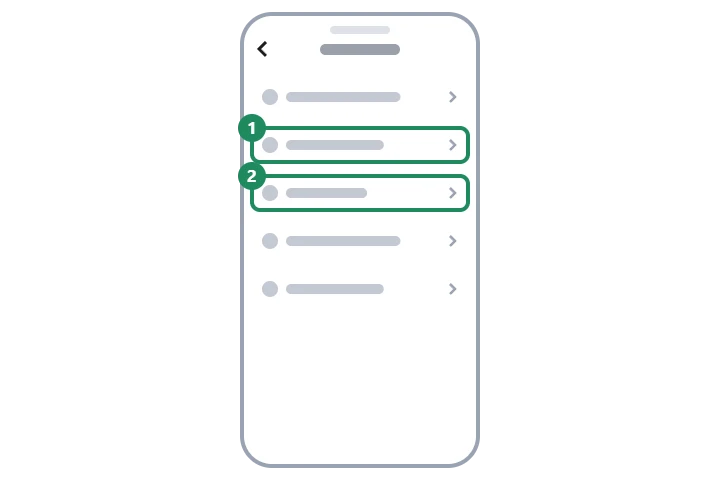
A passkey is a more secure replacement for a password: when logging in, the phone's face recognition, fingerprint or screen lock code approves the login. It cannot be stolen on a fake login page, because the device only uses it with the real TikTok. Setup starts from “Settings and privacy” → “Account” → “Passkey”, and is confirmed by unlocking the phone. Passkeys are not available in every country or on every device, and they do not replace a working phone number and email address, because these may also be needed for account recovery. Logging in with a passkey: Logging in to TikTok on a phone, computer or TV.
Reviewing and removing logged-in devices
The “Manage devices” list in the security settings shows where the account is currently logged in: phone, computer browser or TV, with the device type and the most recent activity.
- In “Security & permissions”, open “Manage devices”. (Some versions of the Help Center place it under the “Privacy” menu.)
- Review the list. An old phone of one's own, a shared TV or a school computer often remains here.
- The remove button (trash icon) next to an unknown or no longer used device logs that device out; TikTok asks for confirmation.
- For an unknown device, change the password immediately after removing it, and turn on 2-step verification, otherwise the intruder can log in again.
Signs to watch for
- Unrequested code: if a verification code arrives without any login attempt, someone knows the password. In that case, change the password and never pass the code on to anyone.
- Security notification: TikTok may send a notification about a login from a new device. If it was not the owner, check the “Manage devices” list.
- Changed contact details: if the phone number or email address has changed, what to do, in order: Hacked TikTok account: first steps.
- Message asking for a code: TikTok staff never ask for a verification code in a message, even if it comes from an account that looks like a friend's. Details: Common scams on TikTok.
If it doesn't work
The phone with the authenticator app was lost. How can I log in?
With the other method set up for 2-step verification, for example a code requested by email, or from a device where the account is still logged in. Afterwards, set up the authenticator app again on the new phone.
The text message or email code does not arrive. What should be done?
It is worth waiting a few minutes and checking the spam folder and the country code. Detailed causes and solutions: TikTok verification code not arriving.
Is a removed device logged out immediately?
Yes, the account is logged out on the removed device and has to be logged in again. If the password has not changed, logging in there is possible again, so for an unknown device, the password has to be changed too.
Can 2-step verification be turned off?
Yes, in the same menu item, but TikTok asks for verification. For security reasons, it is worth leaving it on and, at most, updating the methods after changing phones or numbers.