Signing up for Netflix and starting a membership, step by step
On Netflix, signing up and subscribing happen in one step: there is no free account, and the account is created together with a plan and a payment method. In a browser, the whole process takes a few minutes; it can also be started on a TV or on Android, but on iPhone and iPad a membership can only be started in a browser.
In this article
What is needed to sign up?
- Email address: this becomes the account's main identifier; bills, sign-in codes and password reset emails are sent here. It is best to use an address that will remain accessible in the long term.
- Payment method: usually a bank card. What else can be chosen (gift card, PayPal in some countries, or billing through a partner) depends on the country; the payment step of the sign-up shows the options.
- Legal age: the account owner must be an adult. Children get their own Kids profile within the account.
- Supported device: a computer, phone, tablet, smart TV or game console with an internet connection. The list is on the Netflix-compatible devices page.
Signing up in a browser
This is the simplest route; on a phone, the mobile browser works too. A previously cancelled membership can also be restarted on the same page.
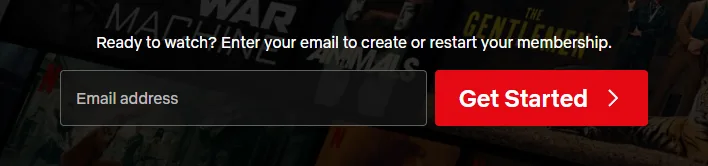
- Open the netflix.com home page. The email field is below the text beginning with “Ready to watch?”.
- Type the address into the “Email address” field, then click “Get Started”.
- Netflix may send a sign-up link by email or ask for a password to be created. Clicking the link continues the process where it left off.
- Choose the right plan. The plans mainly differ in how many devices can watch and download at the same time, the picture quality, and whether an extra member can be added to the account.
- Enter the payment method and its details, then start the membership. Netflix charges the fee monthly, on the billing date matching the day of sign-up.
- Finally, set up the profiles: an account can have up to five profiles, each with its own recommendations and list.
- Enter the email address
- “Get Started”
- Choose a plan
- Create a password
- Enter the payment method
- Set up profiles
Signing up on a TV and in the app
In the apps, sign-up works differently on each platform, so it is worth knowing in advance where a switch to a browser will be needed.
- iPhone, iPad: it is not possible to sign up in the Netflix app for iOS. The account has to be created in a browser at netflix.com/signup; after that, simply sign in to the app (according to the Help Center, on iOS or iPadOS 18 or later).
- Android: sign-up can be started in the app installed from Google Play, but to finish it, Netflix sends a link by email that opens in a browser. According to the Help Center, the version installed from the Samsung Galaxy Store lets the whole process stay in the app.
- TV, streaming device: enter the email address or phone number in the Netflix app, and an activation link arrives by email or text message to continue. Some older TVs and set-top boxes do not support sign-up; in that case, subscribe in a browser and then sign in on the TV: Signing in to Netflix on a TV with a phone or a code.
Which plan to choose?
There is no free plan and no general trial period; the available plans and prices are shown on the sign-up page of the given country. The cheaper ad-supported option is only available in some countries, and not every film can be watched with it. The plan can be changed at any time later: Changing the Netflix plan and the payment method. If the membership comes with a mobile, internet or TV provider's package, the account has to be created following the provider's activation instructions, and billing stays with the provider.
First settings after signing up
- Profiles: it is worth giving every family member their own profile, children a Kids profile, and, if needed, protecting the adult profile with a PIN: Managing Netflix profiles, Profile Lock and Kids profiles.
- Phone number: on the “Account” page, it is worth adding a mobile number with “Add phone number”. Sign-in codes and password resets can then also be requested by text message.
- Household: one membership is for one household. Someone living elsewhere needs their own account or can be added as an extra member: Netflix Household and extra members: the rules for sharing an account.
- Strong password: Netflix recommends a password of at least 8 characters that contains lowercase and uppercase letters, numbers and symbols and is not used anywhere else.
If sign-up gets stuck
- The sign-up link does not arrive: check that the email address is typed correctly, and look in the junk and promotions folders. Most links arrive within two minutes; if not, the “Resend Link” or “Create Password Instead” option helps. More details: Netflix sign-in code or link not arriving.
- The address already belongs to an earlier account: in this case the old account is restarted, which requires signing in. If the password is lost: Resetting a forgotten Netflix password.
- The card is declined: check the card details and the available balance, and whether the bank allows online purchases.
If it doesn't work
Is there a free trial on Netflix?
Not in general: the fee has to be paid from the first month. From time to time there may be discounts in some countries or in provider offers; these are always described in the offer itself.
Can a membership be started in the Netflix app on iPhone?
No. On iPhone and iPad, the account has to be created in a browser at netflix.com/signup; after that, signing in to the app works.
When does Netflix charge the card?
When the membership starts, then monthly on the same billing date. It can be cancelled at any time: Cancelling a Netflix membership and deleting the account.