Signing in to Netflix with a password or a one-time code
The Netflix sign-in page now asks only for the email address or phone number first, and by default lets the user in with a code sent by email or text message. Signing in with a password is still possible; it has just moved behind a menu. This article covers signing in in a browser and on mobile; signing in on a TV has its own article.
In this article
Signing in in a browser
It works the same way on a computer, in a phone's browser and in the Netflix app for Windows.
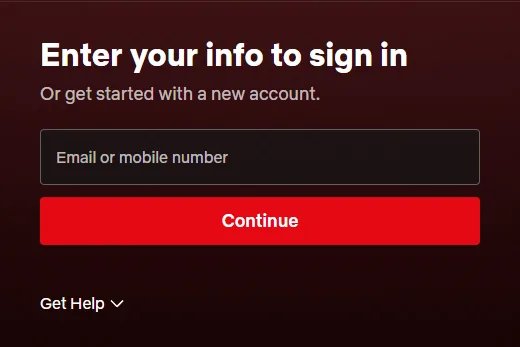
- Open the netflix.com/login page, or click the “Sign In” button at the top right of the home page. The page titled “Enter your info to sign in” appears.
- Type the address or number belonging to the account into the “Email or mobile number” field, then click “Continue”.
- Netflix sends a code by email or text message (in some cases a clickable sign-in link). Type the code in on the page.
- After signing in, the profile picker appears.
Signing in with a password
Anyone who prefers their password can choose it instead of the code: after entering the email address or phone number, click “Get Help”, choose “Use password instead” in the expanded menu, type the password and sign in. The password is case-sensitive. There are two restrictions. A password only works with the account owner's primary email address or phone number; someone who signs in with an email address added to a profile has no password of their own and always gets a code. And according to the Help Center, Netflix may still send a code as a check even when signing in with a password, so the mailbox or phone should be at hand in that case too.
Signing in on a phone or tablet
On Android, iPhone and iPad, sign in in the Netflix app; if it is not installed yet, it can be downloaded from the app store. The app does not allow subscribing, only signing in, so a new account first has to go through sign-up: Signing up for Netflix and starting a membership, step by step.
- Open Netflix and choose to sign in.
- Enter the email address or primary phone number, then tap “Continue”.
- Type in the 4-digit code. If the text message arrives on the same phone, the keyboard often offers it automatically.
- With a password, the same as in a browser: “Get Help”, then “Use password instead”.
Signing in with a phone number
Signing in with a phone number only works if the number is linked to the account and verified. If Netflix does not recognize the number, first sign in with the email address, choose the “Mobile phone” option in the profile settings, and complete the verification. The number can also be added or changed on the “Account” page; the same number will also receive the password reset text message.
If signing in fails
- “Sorry, we can't find an account with this email address.” The account probably belongs to another address. On the netflix.com/LoginHelp page, the “I don't remember my email or phone.” option can find it based on name and bank card.
- Sign-up steps appear instead of sign-in: the browser remembers an old, unfinished sign-up. Sign out at netflix.com/logout, then start again with the “Sign In” button.
- Incorrect password: after a few attempts, it is better to choose the code sign-in or request a new password: Resetting a forgotten Netflix password.
- The code does not arrive or is reported as incorrect: Netflix sign-in code or link not arriving.
- It works on one device but not on another: a common cause is an old password saved in a password manager or browser, which has to be updated after a password change. In a browser, the netflix.com/clearcookies page signs out and deletes Netflix cookies; sign in again afterwards. Cookies must be allowed in the browser. A VPN or custom DNS settings can also interfere with signing in.
- The app will not go further: clearing or resetting the app's data may help, but this also deletes all films and series downloaded to the device.
Signing in on a TV and security
On a TV, there is no need to type with the remote: the device can also be signed in with a QR code scanned by a phone or from a browser, with these steps: Signing in to Netflix on a TV with a phone or a code. The sign-in code is only meant for the account owner: it must not be passed on to anyone, even if someone asks for it in Netflix's name. If a code arrives that nobody in the household requested, someone else is trying to access the account; changing the password is advisable.
If it doesn't work
Why does Netflix ask for a code when there is a password?
Code sign-in is the default because no password has to be remembered. The password can still be used via “Get Help” → “Use password instead”.
How long is the sign-in code valid?
According to the Help Center, 15 minutes. If several codes have arrived, always enter the latest one.
On how many devices can the account be signed in at once?
The number of signed-in devices is not limited; the plan determines on how many devices it is possible to watch at the same time. Unknown devices should be signed out: Netflix: checking signed-in devices and signing them out.