Installing the ChatGPT app on a phone or computer
The official ChatGPT app can be downloaded for free on Android, iPhone and iPad, as well as on Windows and Mac. When logged in with the same account, conversations are available on every device.
In this article
Where to get it for each device
- Android: from Google Play. Requires Android 7.0 or later and Google Play.
- iPhone and iPad: from the App Store. The same app also works on iPad.
- Windows: from the Microsoft Store, or by starting from the chatgpt.com download page.
- Mac: from the chatgpt.com download page.
- Chrome browser: a Chrome extension is also available on the download page.
- Without installing: chatgpt.com works in any browser; the app is optional.
Installing on a phone
- Open Google Play (Android) or the App Store (iPhone, iPad) and search for “openai chatgpt”. On a phone, the right store can also be reached from the “Download ChatGPT for mobile” section of the download page, with the “iOS” and “Android” buttons.
- Check that the developer is OpenAI. Apps with similar names from other developers are not official.
- Install the app, then open it.
- Log in with the existing account, using the same method as on the web (email address, or Google, Apple or Microsoft account). If there is no account yet, signing up is also possible in the app: Creating a ChatGPT account.
- On Android, login goes through the Chrome browser, so Chrome (or Brave) should be installed on the phone.
- The app may ask for permissions, for example for the microphone (for voice conversations) or for notifications. These can be declined and granted later in the phone's settings.
Installing on Windows
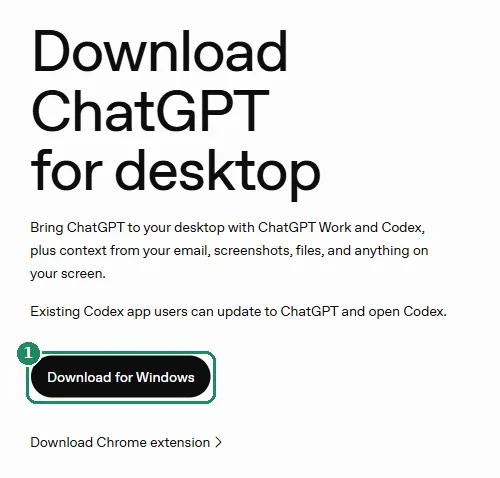
- Open the download page and, in the “Download ChatGPT for desktop” section, click “Download for Windows”. Installation runs through the Microsoft Store; ChatGPT can also be found directly in the Microsoft Store (developer: OpenAI).
- Start the installation in the Microsoft Store.
- Open ChatGPT from the Start menu and log in with the same account as on the web.
- On a company PC, the administrator may restrict installation; in that case, ask them for help.
Installing on a Mac
- Open the download page and, in the “Download ChatGPT for desktop” section, choose the Mac download.
- Open the downloaded installer file and copy ChatGPT to the Applications folder.
- Start ChatGPT from the Applications folder or Launchpad, and log in with the same account as on the web.
- On a Mac, the Option (⌥) + Space shortcut lets a question be asked quickly without bringing up the main window.
- The new ChatGPT desktop app can be downloaded from the download page
- Besides chat (Chat) and tasks (Work), it also includes Codex
- On the download page, choose “Download ChatGPT Classic”
- ChatGPT Classic also works on macOS 14 or later with an Intel processor
- chatgpt.com in the browser can always be used
New desktop app or ChatGPT Classic?
OpenAI has released a new desktop app for Windows and macOS, and the previous one is available as “ChatGPT Classic”. Both can be installed at the same time.
- New app: offers chat (Chat), tasks (Work) and the Codex programming assistant in one place. The top-left menu switches between ChatGPT and Codex, and inside ChatGPT the toggle at the top switches between Chat and Work.
- ChatGPT Classic: the previous app, which still receives updates and bug fixes, but some new features are only available in the new app.
- Anyone already using the previous desktop app gets an in-app notification about switching to the new one; conversations do not need to be moved.
- ChatGPT Classic can be downloaded at the bottom of the download page, in the “Download ChatGPT Classic for Mac and Windows” line.
Logging in and syncing
- On every device, log in with the same account and the same login method. A different method may open another, empty account. Details: Logging in to ChatGPT on the web and in the app.
- Conversations belong to the account, so the same history appears on the web, on the phone and on the computer. The exception is Codex: in the desktop app, its history is kept separately from ChatGPT conversations.
- The subscription is valid on every device when the same account is used. A subscription bought on Google Play or in the App Store, however, has to be managed there: Managing and canceling a ChatGPT subscription.
- Account switching is not yet available in the phone apps: log out to use another account.
Common errors
- An error message appears on Android at login: an outdated Google Play Store or a missing Chrome can cause this. Update Google Play, install Chrome, then try again a little later.
- An error message about the date and time: the phone's clock is not set correctly, or the internet connection is unstable. Turn on automatic date and time, then restart the app.
- The app cannot be found in the store: the phone is too old (Android below 7.0), or the store's country setting is a country that is not supported.
- The history in the app is empty: the login probably went to a different account. Log out and log in again with the method used on the web.
- The Windows app is not working properly: the app can be reset in Windows Settings, under installed apps, in the advanced options for ChatGPT.
If it doesn't work
Does the app cost anything?
No, the download is free, and it can be used with a free account. If there is already a subscription on the web, it does not need to be bought again in the app: logging in with the same account is enough.
How to tell whether the original app was installed?
The developer of the official app is OpenAI. The safest way is to use the links on the chatgpt.com download page, because they lead to the official store pages.
Does it work on iPad?
Yes, the ChatGPT app from the App Store can also be used on iPad.
Does it need to be installed on a computer?
It is not required: chatgpt.com is fully usable in a browser. Advantages of the desktop app include, for example, access with a keyboard shortcut, and Codex is close at hand in the new desktop app.
Do conversations carry over to the phone?
Yes, if the phone is logged in with the same account and the same login method as on the web. Conversations do not need to be copied over separately.