Searching, archiving and deleting ChatGPT chat history
ChatGPT keeps every normal conversation in the sidebar, so after a few weeks hundreds of chats can pile up. Any of them can be found with search, unneeded ones can be archived or deleted, and related ones can be organized into projects. The difference between archiving and deleting matters: one only hides, the other is permanent.
In this article
Finding an earlier conversation
The sidebar lists conversations in chronological order, newest first. ChatGPT automatically gives each chat a title based on its first messages, so an old conversation is quicker to find with search than by scrolling.
- On the web, click the magnifying glass icon at the top of the sidebar or use the keyboard shortcut Ctrl+K (Cmd+K on a Mac). Search looks in the titles and in the text of the conversations.
- In the iOS and Android apps, open the sidebar and type in the search field at the top.
- Temporary chats are not added to the history, so search does not find them either. Archived conversations can appear in search results, but not in the sidebar.
- An important conversation can also be pinned in the three-dot menu (if the interface offers it), so it stays at the top of the sidebar.
- It is a good idea to give important chats a meaningful name, with the “Rename” option in the three-dot menu.
Archiving: hiding without deleting
An archived conversation disappears from the sidebar, but it is not deleted and can be brought back at any time. Archiving does not change how long OpenAI keeps the conversation.
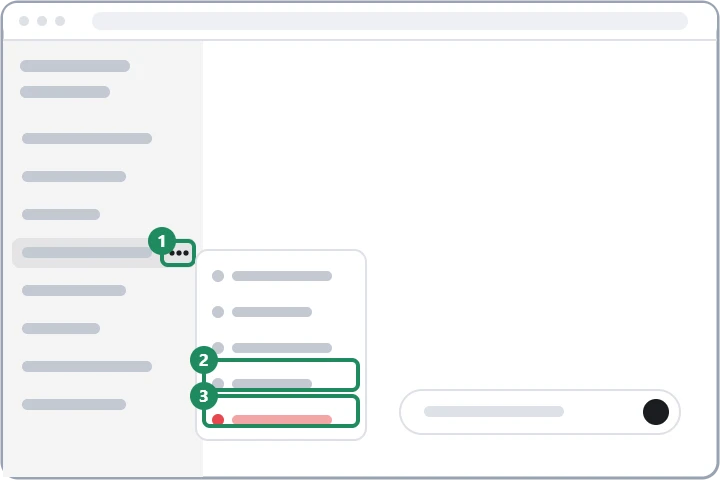
- In the sidebar, move the mouse over the conversation (on mobile, press and hold its name) and open the three-dot menu.
- Choose “Archive”; no confirmation is needed.
- The list of archived chats: “Settings” → “Data controls” → the “Manage” button next to “Archived chats”.
- In the list, the conversation can be opened and restored to the sidebar from there (unarchived), or deleted.
- All conversations can also be archived at once: “Settings” → “Data controls” → “Archive all chats”.
- If a conversation worked with data from an outside app, that data is also kept after archiving; to remove it, the conversation has to be deleted.
Deleting conversations one by one or all at once
- To delete a conversation, choose “Delete” in the three-dot menu, then confirm.
- To delete all conversations: “Settings” → “Data controls” → “Delete all chats”, then confirm. This also affects conversations in projects.
- A deleted conversation disappears from the interface immediately, and there is no trash: it cannot be recovered either in the interface or through support.
- OpenAI permanently removes a deleted conversation from its systems within 30 days, unless it has to be kept for legal or security reasons.
- A saved memory created from the conversation is not deleted with it; it has to be deleted separately in memory: Managing ChatGPT memory and custom instructions.
- Separately saved files (for example images and documents in the library) remain after the conversation is deleted and have to be deleted there.
- If a shared link was created for a conversation, deleting the conversation also ends the link.
- Before deleting, it is worth requesting a data export if the conversations might be needed later. How the export works: ChatGPT privacy settings.
Organizing chats into projects
A project is a folder for conversations, with its own files and instructions. It is useful when many separate conversations revolve around one topic (a thesis, a move, a work assignment) and ChatGPT needs the same background in each of them.
- In the sidebar, choose “New project” and give the project a name.
- New conversations can be started inside the project, and existing ones can be added with “Move to project” in the three-dot menu or by dragging.
- In the project settings, files can be uploaded and instructions given; these apply only to the conversations in that project.
- When a project is deleted, the conversations and files in it are deleted too, so chats worth keeping should be moved out first.
Where is the history visible?
The history belongs to the account, so when logged in, the same conversations appear on the web and in the desktop and mobile apps, and deleting or archiving applies everywhere. If a conversation is missing, first check whether the login was made with the same account and the same login method: an account created with a Google account and one created with an email address mean two separate history lists. About the login methods: Logging in to ChatGPT on the web and in the app. In a work workspace, conversations belong to the workspace and do not appear in the personal account.
If it doesn't work
Can an accidentally deleted conversation be restored?
No. After deletion the conversation disappears from the interface immediately, and support cannot return it either. Anything that might be important is better archived than deleted.
Can an archived conversation also be used for model training?
Archiving only changes what is displayed, not how the data is handled. That is decided by the model training toggle in the data controls.
Can projects be used with a free account?
Yes, projects are also available on the free plan, but fewer files can be uploaded than on paid plans. The differences between plans: Managing and canceling a ChatGPT subscription.