Logging in to ChatGPT on the web and in the app
ChatGPT always has to be logged in to with the method the account was created with: a different method can open a new, empty account. Below are the login methods and fixes for the most common errors.
In this article
- Choose that provider's button at login
- Log in with the same Google, Apple or Microsoft account used at sign-up
- There is no ChatGPT password in this case: a forgotten password has to be reset with the provider
- Type the account's email address
- Enter the password or use the passkey that was set up
- For a forgotten password, choose the reset link next to the password field
Logging in from a web browser
- Open chatgpt.com and click “Log in”. On a shared or someone else's computer, using a private (incognito) window is recommended.
- In the “Log in or sign up” window that opens, choose how to log in:
- for an email address, type the account's address into the “Email address” field, then click “Continue”,
- for a Google or Apple account, click “Continue with Google” or “Continue with Apple” and log in with that service.
- For an email account, enter the password. If a passkey belongs to the account, ChatGPT offers it first; to continue with the password or another method, choose “Try another method”.
- On a new device or from an unusual location, ChatGPT may send a six-digit verification code to the account's email address. If multi-factor authentication is on, a code from the authenticator app, a code sent by text message or an approval on another device may also be needed.
- After a successful login, earlier conversations appear in the sidebar.
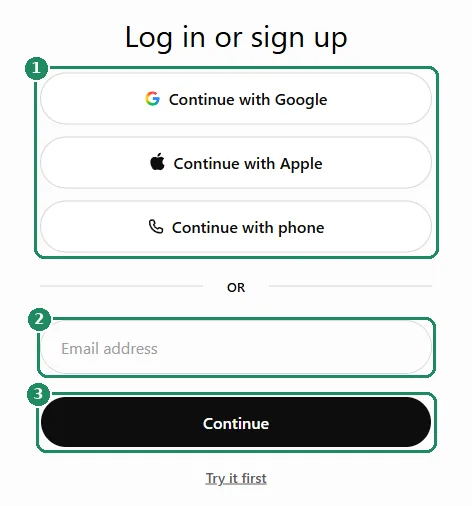
Login methods at a glance
- Email address and password: the traditional method. The password can be changed in the account section of the settings.
- Email address and verification code: in certain cases (new device, unusual location, sensitive change), ChatGPT emails a six-digit code. Codes expire quickly, so always enter the most recent one.
- Google, Apple or Microsoft account: there is no separate ChatGPT password; the provider handles the login.
- Passkey: works with a fingerprint, face recognition, the device PIN or a security key, without a password. After logging in, it can be set up under “Settings” > “Security” > “Passkeys” with “Add passkey”.
- Phone number: only for accounts registered with a phone number; such sign-up is available in just a few countries. The password of such an account can be reset by text message, and only from a device that has been used before.
- Work single sign-on (SSO): with company or school plans, login goes through the organization's own login page; for problems, ask the administrator for help.
Why always use the same method?
Accounts created with an email address and with a Google, Microsoft or Apple account can be separate accounts, each with its own conversations and its own subscription. OpenAI does not merge them.
- If the conversation list is empty after logging in, or the subscription has disappeared, the login probably went to a different account. Log out and try the other methods.
- An account created with Apple and a hidden email address (@privaterelay.appleid.com) can only be accessed with Apple, using the same Apple Account.
- An account created with an email address and password can be linked to Google, Microsoft or Apple login if the email address matches. After that, both methods lead to the same account.
- While multi-factor authentication is on, the login method cannot be changed: turn it off first, log in with the new method, then turn it back on.
- After logging in, the account's email address can be seen under “Settings” > “Account”. It may differ from the address where subscription invoices are sent.
Logging in to the phone and desktop apps
- Install the official ChatGPT app published by OpenAI. Details: Installing the ChatGPT app on a phone or computer.
- Open the app, choose to log in, then use the same method as on the web.
- On Android, login goes through the Chrome browser. If Chrome (or Brave) is not on the phone, an error message appears; the help recommends Chrome as the default browser.
- In the desktop app (Windows, macOS), log in with the same ChatGPT account the owner uses on the web or the phone.
- If login approval by notification is turned on, the phone app may receive a notification about a login started on another device. It can be approved or denied there; if it does not arrive, an email code can also be requested on the device being logged in.
If ChatGPT will not let you in
- It says the user already exists, or that the authentication method is wrong: the account was created with a different method. Try the email login and the Google, Microsoft and Apple login one by one, preferably in a private window.
- It used to work, but now it does not: an outdated cache, cookies or an extension can cause this. Clear the browser's cache and cookies, or try in a private window or another browser.
- The browser check keeps repeating: a VPN, a proxy, an ad or script blocker, or blocked cookies or JavaScript can stall it. Turn these off, or try on another network (for example mobile data).
- A message about suspicious login behavior: after many failed attempts, logging in may be temporarily restricted. Wait up to an hour and turn off any VPN in the meantime.
- A general error message: wait at least a minute and try again, and check status.openai.com for an outage.
- The verification code does not arrive: check the spam folder and request a new code. Official codes come from OpenAI addresses (for example [email protected]).
- Suspended or deactivated account: such an account cannot be logged in to; OpenAI explains the reasons by email. If it is a mistake, contact support and include the emails received.
Logging out and other people's devices
- On a shared computer, do not save the password, and log out after use.
- Logged-in devices are listed under “Settings” > “Security” > “Active sessions”. Devices can be logged out one by one or all at once there; logging out of all sessions can take up to 30 minutes.
- If a login came from an unknown location, change the password immediately and turn on multi-factor authentication.
- Detailed troubleshooting in the OpenAI Help Center: Why can't I log in to ChatGPT?
If it doesn't work
I forgot my password
On the login page, at the password step, choose “Forgot password?” and follow the instructions in the email. Accounts registered with Google, Apple or Microsoft have no ChatGPT password: in that case, reset the password with the provider. Details: Resetting or changing your ChatGPT password.
The conversation list is empty after logging in
The login probably went to a different account, for example with a Google account instead of the email one. Log out and log in again with the method used at sign-up.
Can I be logged in on several devices at once?
Yes, for example in the browser and in the phone app. The list of logged-in devices can be checked under “Settings” > “Security” > “Active sessions”.
Can I switch between two ChatGPT accounts?
On the web, yes: a second account can be added in the account menu, and switching between at most two accounts is possible in one session. This is not yet available in the phone apps, where logging out is necessary.
The phone with the authenticator app has been lost
If no other verification method has been set up, contact OpenAI support. Verification can take a few days; afterwards a one-time email login is provided, and a new verification method has to be set up.