Hacked Gmail account: first steps
If Google warns about an unusual sign-in, contacts receive strange emails from the address, or emails disappear, someone unauthorized probably has access to the account. The order matters here: first regain control, then lock the intruder out, and finally look for anything they left behind in the Gmail settings.
In this article
Signs that an account has been hacked
- A security alert arrived about a sign-in from an unknown device or country.
- Contacts receive emails from the address (for example asking for money, with a link, or “please help quickly”) that the owner did not send.
- The “Sent” folder contains unknown emails, or emails have disappeared from it.
- Certain emails (from the bank, an online shop, password resets) do not appear, even though the sender sent them.
- The password, recovery phone number or email address, or the name shown on the account has changed.
- An unknown event appears under “Recent security activity” on the Google Account page.
- Malware-free device
- Sign in or recover
- New password
- Sign out unknown devices
- Fix recovery details
- Review Gmail settings
- 2-Step Verification
1. Regaining control
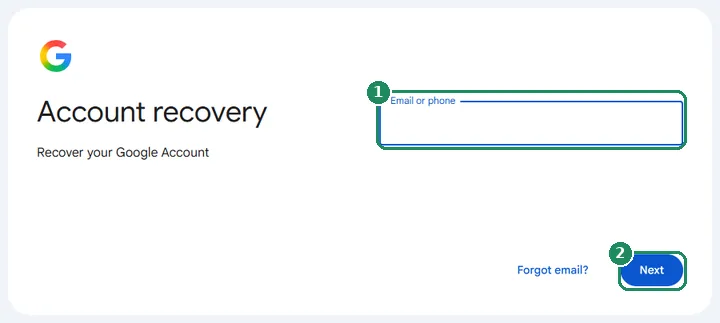
If signing in still works, change the password immediately at myaccount.google.com/security. If the intruder has already changed the password or the recovery details, start at accounts.google.com/signin/recovery, and answer the questions as accurately as possible, from a familiar device. Recovery in detail: Resetting a forgotten Gmail password.
- If the computer or phone may be infected (for example after a downloaded program or attachment), first run an antivirus scan, or work from another, trusted device. Spyware can steal the new password too.
- Choose a new password that is long and not used on any other site. If the old password was also used elsewhere, change it there too, starting with the bank and the services that send password reset emails to the Gmail address.
- According to Google's help, choose “Review security events” under “Recent security activity”. For an unknown event, the “No, it wasn't me” button lets Google guide you through securing the account.
2. Locking the intruder out
- In the “Security & sign-in” section of the Google Account, under “Your devices”, choose “Manage devices”. Sign out of every unknown device; if it is not clear which device is unfamiliar, sign out of all of them and then sign back in on your own.
- Review the third-party apps and services with access to the account at myaccount.google.com/connections, and remove anything unknown or no longer used.
- If 2-Step Verification is on, also review the list of app passwords. Google revokes them when the password is changed, but if the list shows an unknown entry after the change, delete it.
- If an unknown passkey or security key has been added to the account, remove it from the sign-in methods as well.
3. Checking recovery details
Intruders often add their own phone number or email address as recovery details so they can come back later. At myaccount.google.com/security, check the recovery phone number, the recovery email address and – if the feature is available – the recovery contacts. Delete everything unfamiliar and correct your own details. Also review the phone numbers set up as the second step of 2-Step Verification, and generate new backup codes, because this invalidates the old ones.
4. Gmail settings: what the intruder may have left behind
According to Google's help, the Gmail settings of a hacked account should be checked separately, because the intruder can use them to keep receiving emails even after the password change, or to hide their traces. On a computer, the settings are reached with the gear icon, then “See all settings”.
- Forwarding: the “Forwarding and POP/IMAP” tab must not show an unknown forwarding address. If there is one, turn it off and delete it.
- POP and IMAP access: the same tab shows whether downloading emails to other programs is enabled. If the owner does not use an email program, it can be turned off.
- Filters: on the “Filters and Blocked Addresses” tab, look for filters that delete, archive, mark as read or forward emails, for example notifications from the bank or Google. Delete any unknown filter.
- Blocked addresses: the same tab shows if the intruder blocked a sender (for example the bank) so its emails would not arrive.
- Delegation: on the “Accounts and Import” tab, check that nobody has been given access to the account. The same tab also shows the sending name and additional “send from” addresses.
- Automatic reply and signature: the “General” tab must not contain an unknown automatic reply or a signature with a link or unfamiliar contact details.
- Scheduled emails and labels: the “Scheduled” folder must not contain any email the owner did not write.
5. Protection afterwards
- Turn on 2-Step Verification and create a passkey: fake sign-in pages are powerless against it. Details: Signing in to Gmail: password, passkey and phone prompts.
- The Security Checkup page goes through the account's weak points one by one and suggests fixes.
- If the intruder asked for money or sent links in the account's name, warn contacts not to reply and not to open the link.
- If the account held payment card details, personal documents or important files (for example on Google Drive), notify the bank as well, and review the sharing settings of Drive and Google Photos.
- In case of financial loss or identity misuse, contact the local police; save screenshots of the suspicious events for this.
- Most account hacks start with a phishing email. How to recognize the signs: Common scam emails in Gmail and how to spot them.
If it doesn't work
How can one find out who signed in to the account and from where?
In the “Security & sign-in” section of the Google Account, recent security activity and the “Your devices” list show the device type, the time of sign-in and the approximate location. The “Details” link at the bottom of Gmail also shows recent account activity.
Is changing the password enough?
Not always. Forwarding, a filter or delegation set up by an intruder can keep working after the password change, and the account can be taken over again with unfamiliar recovery details. That is why all the steps above need to be checked.
Can emails deleted by the intruder be recovered?
Deleted emails stay in the “Trash” folder for 30 days and can be restored from there. If the “Trash” has also been emptied, Google's help says assistance can only be requested in limited cases, with no guarantee.
Why do contacts get spam from my address if the account is fine?
The sender address can be spoofed: in that case the email does not come from the Gmail account, it only imitates the sender's name and address. If the “Sent” folder has no such emails and the security activity looks normal, this is probably what happened. Recipients should report the email as spam.
Can Google help recover a hacked account by phone?
No, Google does not offer account recovery by phone. Anyone asking for a code or password by phone as a “Google employee” is a scammer.