Resetting a forgotten Gmail password
The Gmail password is the Google Account password, so resetting it also goes through Google Account recovery. It is quickest when the account has a reachable phone number, a recovery email address, or a phone on which the account is still signed in. If none of these is available, recovery is not impossible, but it is slower and involves answering more questions.
In this article
- “Forgot password?” on the sign-in page
- Approve the prompt or enter the code received
- Set a new password
- Review the recovery details
- Use a familiar device, browser and location
- Answer every question, with the last password you remember
- Give a contact email address you can access
- Wait if Google delays the request for security reasons
Recovery steps
The process starts the same way in a browser and on a phone. Google decides which check to ask for based on the details set up for the account, so not everyone sees the same steps.
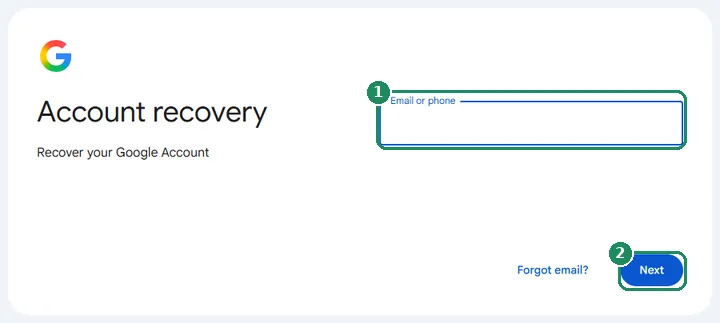
- Open Gmail or accounts.google.com/signin/recovery, and enter the account's full email address (or the phone number linked to it).
- On the password page, choose “Forgot password?”.
- If Google asks for a previous password, enter the most recent one you can remember. An older password also helps; a wrong answer does not lock the user out of the process.
- Google then offers one of the verification methods set up for the account (see below). If that method is not available, “Try another way” moves on to the next one.
- After a successful check, set a new password. Choose one that the account owner does not use anywhere else and that has not been used on this account before.
- Finally, Google may offer to check the recovery details. Do this right away, so the process is faster next time.
Possible verification methods
- A prompt on the signed-in phone: if the account is signed in on an Android phone or in a Google app on an iPhone (such as Gmail), Google can send a notification there. Confirm by tapping “Yes”, sometimes by selecting a number. The phone needs an internet connection for this.
- A code by text message or call: enter the code sent to the phone number on the account. The most recently received code is always the valid one.
- A code to the recovery email address: Google sends a code to the other email address set up for the account. If it does not arrive, check the spam folder too.
- Passkey: if a passkey was created earlier, unlocking the device (fingerprint, face, PIN) can also verify the owner.
- Backup code: with 2-Step Verification on, one of the previously saved eight-digit backup codes can also be used.
- Recovery contact: since 2025, some personal accounts can name a trusted person who can verify the owner by confirming a code. The feature is rolling out gradually, and it only helps if it was set up before the password was forgotten.
If none of the verification methods works
If the phone number is no longer in use, the recovery email address is inaccessible and there is no signed-in device, Google tries to verify the owner with questions. According to Google's help, where the request comes from matters a lot in this case.
- A familiar device and browser: use the computer or phone, and the browser, from which the account was regularly signed in before.
- A familiar location and network: try from home or work, over the usual internet connection, without a VPN.
- Answer every question: do not skip any. If the exact answer is not known, a best guess is better than skipping.
- A reachable email address: if Google asks for a contact address, give one that the user can read right now, because the reply may arrive there.
- Patience: if the request is unusual, Google may delay recovery for a few hours or several days for security reasons. With 2-Step Verification on and no working second step, Google's help says this can take 3–5 business days.
- Trying again: there is no limit on the number of attempts. If Google says it could not verify the owner, try again a few days later, preferably from a familiar device.
Common obstacles and how to get past them
- The text message does not arrive: according to Google, text message delivery depends on the carrier and location, and sending may be blocked for an unusual sign-in. In that case, a prompt on the signed-in phone or the recovery email is the better choice. Travel brings extra considerations: Signing in to Gmail from abroad: when the text message code does not arrive.
- The username is not known either: on the sign-in page, “Forgot email?” finds the address using the phone number or recovery email address set up for the account and the full name on the account.
- Work or school account: for these, the password is usually reset by the organization's administrator, and the steps above do not always work.
- Child account: the password of a child under 13 (or under the minimum age in the country concerned) can also be reset by the parent who manages family supervision.
- The account is under a security lock: this is not an error but protection against account takeover. During the waiting period, avoid starting new requests again and again from other devices.
If recovery fails for good
Google does not offer phone support for account recovery, and cannot give anyone access to an account from outside. If recovery still fails after repeated attempts, a new Google Account can be created: How to create a Gmail account, step by step. For the new account, add the phone number and recovery email address right away, and save the backup codes. Keep in mind that Google may delete personal accounts that have not been used for at least two years, so the chance of recovering a long-unused account shrinks over time.
Prevention: making it faster next time
- At myaccount.google.com/security, check that the recovery phone number and email address are up to date.
- Create a passkey on your own phone: that way, signing in remains possible even after forgetting the password. About the ways to sign in: Signing in to Gmail: password, passkey and phone prompts.
- Print the backup codes or save them somewhere safe.
- Keep the password in a password manager, not on paper next to the computer.
- According to Google, changes to recovery details can take up to seven days to apply in every situation, so do not leave this until the last minute.
If it doesn't work
How long does resetting a Gmail password take?
If the phone prompt, text message code or recovery email works, it is done in a few minutes. If Google delays the request for security reasons, it can take from a few hours to several days; without a working second step, the help says it can take 3–5 business days.
Can Google be called to reset the password?
No. Google does not offer phone help for account recovery, and never asks for a password or verification code by phone or message. Anyone offering this is a scammer: Common scam emails in Gmail and how to spot them.
Does Google lock me out if I answer the questions wrong?
No. A wrong answer does not end the process, and there is no limit on the number of attempts. The chances of success improve with a familiar device and location, and with answers that are as accurate as possible.
Are emails kept after the password is reset?
Yes. Changing the password does not affect emails, contacts or Drive files. On other devices (for example in an email program), however, signing in again with the new password is required.
What if someone else changed the password?
Start the same way on the recovery page, then right after signing in, review the account's security settings: Hacked Gmail account: first steps.