Signing in to a Microsoft account: password, passkey, Authenticator
A Microsoft account can be signed in to with a password, a code received by email or text message, the Microsoft Authenticator app or a passkey. The sign-in page offers the strongest method set up for the account first; the others are under “Other ways to sign in”.
In this article
Steps to sign in
Outlook.com, OneDrive, Xbox and Microsoft 365 all use the same sign-in page, so the steps are the same everywhere. If there is no account yet: Creating a Microsoft account step by step.
- Open account.microsoft.com (or the service to be used) and click “Sign in”.
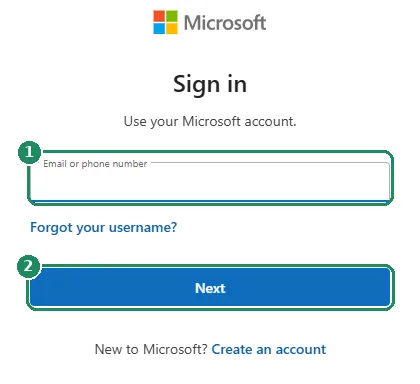
- Type the account's email address or phone number into the “Email or phone number” field, then click “Next”. Any alias of the account (for example an old @hotmail.com address) also works.
- Microsoft offers the strongest method set up for the account (for example a passkey or Authenticator). If that is not available right now, another one can be chosen under “Other ways to sign in”.
- If two-step verification is on, a second confirmation (a code or an approval) is also required.
- Finally, the account or the chosen service opens.
Sign-in methods at a glance
- Passkey: the computer or phone confirms the sign-in with face recognition, a fingerprint or a PIN. It is the fastest and most secure method, because it cannot be stolen or typed into a fake site.
- Microsoft Authenticator: a notification that appears on the phone is approved. A good choice when signing in from several different computers.
- One-time code: Microsoft sends a code to the email address or phone number of the account. The code does not go into the password field: it does not replace the password.
- Password: the traditional method. Newer accounts have no password by default, and on older ones the password can be removed (passwordless account).
- Create a passkey on this device
- Sign in with face recognition, a fingerprint or a PIN
- Keep the Authenticator app as a backup
- Open a private (InPrivate, incognito) window
- Approve with Authenticator, or use a passkey from the phone via QR code
- Sign out after use and close the browser
Creating a passkey
The passkey should be created on the device that will be used to sign in (or on the phone where it is to be saved).
- Sign in to the “Advanced security options” page: account.live.com/proofs/manage.
- Select “Add a new way to sign in or verify”, then choose “Face, fingerprint, PIN, or security key”.
- Follow the instructions of the computer or browser. Where to save it can be chosen:
- Windows PC: Windows Hello stores it, and signing in works with a face, a fingerprint or a PIN.
- Phone or tablet: scan the QR code shown on the screen with the phone's camera; Bluetooth may also be needed.
- Security key: a USB or NFC hardware key.
- Password manager: for example Microsoft Password Manager, Google Password Manager, iCloud Keychain or 1Password.
- Once the passkey is ready, Microsoft asks for it at the next sign-in.
Signing in with a passkey
- On the sign-in page, enter the email address, then click “Next”.
- If the passkey is on this computer, Windows (or the phone) asks for face recognition, a fingerprint or a PIN. That completes the sign-in.
- If the passkey is on the phone but the sign-in happens on another computer, the computer shows a QR code. Scan it with the phone's camera, then confirm the sign-in on the phone.
Signing in with the Microsoft Authenticator app
Install the app on the phone and add the Microsoft account to it. After that, a sign-in can be approved with a single tap.
- On the sign-in page, enter the email address, then click “Next”.
- Choose “Send notification”. If it is not shown, select the option to approve a request in the Authenticator app under “Other ways to sign in”.
- A number may appear on the computer screen.
- Open the Authenticator app on the phone, or tap the notification about the sign-in request.
- Select or type the number shown on the computer, then tap “Approve”.
Signing in with a one-time code
- After entering the email address, choose to receive a code under “Other ways to sign in”, and select which address or number it should go to.
- Type the code received on the sign-in page. If several codes have arrived, use the most recent one.
- If the code does not arrive, wait a few minutes and check the junk folder.
Signing in on someone else's or a shared computer
- Opening a private window is recommended: Ctrl+Shift+N in Edge and Chrome, Ctrl+Shift+P in Firefox. The browser clears the sign-in when the window is closed.
- The browser may keep the account signed in even after it is closed, so signing out must not be skipped on a shared computer.
- To sign out, click the profile picture in the top-right corner; then close all browser windows.
- If the browser offers to save the password, decline.
- Creating a passkey on a shared computer is not a good idea; Authenticator approval or a passkey stored on the phone (via QR code) is the safe option instead.
Signing out of all devices
If signing out was forgotten on a computer, or a phone has been lost, the account can be signed out of every device at once:
- Sign in to the “Advanced security options” page.
- Scroll down to “Sign out everywhere” and click “Sign out”.
- Signing out may take up to 24 hours. It does not apply to Xbox consoles, where signing out has to be done separately.
- If someone else might know the password, changing the password afterwards is also recommended.
If signing in fails
- Forgotten password: on the password page, select “Forgot password?”, then set a new password with the code received. Direct link: reset password.
- Not sure which address the account was created with: the “Forgot your username?” link on the sign-in page helps find it.
- The code does not arrive: check the junk folder, and choose another address or method under “Other ways to sign in”.
- New phone, Authenticator is gone: choose another method (code, passkey), then add the account to the app again on the new phone.
- None of the security info is available: Microsoft's Sign-in helper tool walks through the options. Support cannot send a password and cannot change the account details.
- An old program says the password is wrong, but it is correct: with two-step verification or a passwordless account, older apps (for example Outlook 2010, Xbox 360 and some email programs) need an app password, which can be created in the additional security options.
If it doesn't work
My account is passwordless. What should I do if my phone is lost?
Use another method that has been set up: a code received by email, a passkey stored on the computer, or a security key. That is why setting up at least two independent methods is recommended. If none of them is available, the Sign-in helper can help.
What is the difference between the Windows PIN and the Microsoft account password?
The Windows Hello PIN belongs only to that particular computer and unlocks the passkey stored on it or the Windows sign-in. It cannot be used to sign in on another computer, so it is less dangerous if it leaks. More about signing in to Windows: Local account or Microsoft account in Windows.
Can a password be turned back on for a passwordless account?
Yes. In the additional security options, passwordless mode can be turned off in the “Passwordless account” section, and a new password can be set.
What is two-step verification, and is it needed?
When it is on, a second confirmation (a code or an Authenticator approval) is needed in addition to the password. It can be turned on at account.microsoft.com/security. Before that, at least two pieces of security info (for example two email addresses, or an email address and Authenticator) must be set up.
I forgot to sign out on someone else's computer. What should I do?
On the “Advanced security options” page, the “Sign out everywhere” section signs the account out of every device. This may take up to 24 hours, so changing the password is also recommended.