Creating a Microsoft account step by step
A Microsoft account can be created for free in a few minutes with an existing email address or a new Outlook.com address. New accounts are passwordless by default: signing in works with a code sent by email, a passkey or the Authenticator app.
In this article
What is a Microsoft account for?
It is a single account that signs in to almost every Microsoft service. The account is free; paid subscriptions (such as Microsoft 365) are separate. Short overview: Microsoft account: an overview.
- Outlook.com: free email and calendar (details: Outlook.com (Hotmail): an overview).
- OneDrive: 5 GB of free cloud storage for files and photos.
- Word, Excel, PowerPoint: web versions that can be used for free in a browser.
- Windows: signing in to the PC and syncing settings and backups (see: Local account or Microsoft account in Windows).
- Xbox and Microsoft Rewards: a gaming profile, and points earned for using Microsoft services.
- Enter an email address or request a new Outlook.com address
- Country and date of birth
- Name
- Enter the verification code
- Robot check
- Account ready, then set up a passkey or Authenticator
Which address to sign up with?
- An existing email address (for example Gmail or an address from an internet provider): this address becomes the account's username, and email stays where it is. A good choice when no new mailbox is needed.
- A new Outlook.com address: when there is no email address yet, or a new mailbox is wanted. In this case an Outlook.com mailbox is created along with the account.
- A phone number: signing up with a phone number used to be possible, but the sign-up page does not always offer this option now. If the phone number is not accepted, try an email address instead.
- An address that was once used for a Microsoft account cannot be used again, even if the old account was closed long ago.
Creating the account step by step
- Open signup.live.com. The “Create free account” button on outlook.com and the “Create an account” link on the Microsoft sign-in page lead to the same place.
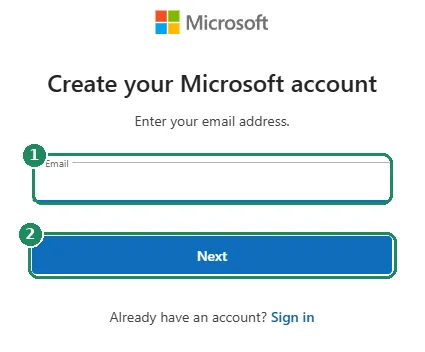
- On the “Create your Microsoft account” page, type the existing email address into the “Email” field. For a new Outlook.com address, select “Get a new email address” below the email field, enter the name wanted before the @ and choose the ending (for example outlook.com or hotmail.com).
- Select “Next” to continue.
- Enter the country or region and the date of birth. Real details are worth giving: the date of birth decides whether a child account is created, and it can also matter when recovering the account.
- Enter the first and last name.
- With an existing email address, Microsoft sends a verification code to that address. Open the email and type the code on the sign-up page.
- With a new Outlook.com address, a password is also needed, because there is no other address yet where a code could be sent.
- Finally, solve a short robot-check puzzle. The account is then ready, and Microsoft may offer to create a passkey for faster sign-ins.
Passwordless account: what does it mean?
Since 2025, Microsoft creates new accounts without a password by default. There is no password to remember; instead, one of the following methods is used to sign in:
- One-time code: Microsoft emails a code to the account's address, and that code is entered.
- Passkey: the computer or phone confirms the sign-in with face recognition, a fingerprint or a PIN. On a Windows PC, this is Windows Hello.
- Microsoft Authenticator: a notification that appears on the phone is approved.
- A password can be added later: on account.microsoft.com/security, passwordless mode can be turned off in the “Passwordless account” section of the additional security options. This may be needed for some older apps and devices, for example Outlook 2010, IMAP or POP email programs, Windows 7 or 8.1, and Xbox 360.
- More about the ways to sign in: Signing in to a Microsoft account: password, passkey, Authenticator.
Adding security info
Security info (an additional email address, an authenticator app, a passkey) proves that the account really belongs to its owner. If the only sign-in method is lost, the account is hard to recover without it.
- Sign in at account.microsoft.com/security.
- On the “Security” page, choose to manage how to sign in.
- Add a new way to sign in or verify: for example a second email address, the Microsoft Authenticator app or a passkey.
- For a new email address, Microsoft sends a code to it; enter the code, then click “Next”.
- Setting up at least two independent methods is recommended, for example a second email address and a passkey.
- The second email address can belong to a family member, but it should be one that will still be accessible years from now.
If sign-up fails
- The address is already taken: the address may already belong to a Microsoft account (for example an old Skype or Xbox account). In that case, sign in instead of signing up, or request a new password. The address of an account closed long ago cannot be reused either.
- The code does not arrive: wait a few minutes, check the junk and promotions folders, and make sure the address was typed without mistakes. A new code can then be requested; always enter the most recent one.
- The phone number is not accepted: sign up with an email address instead.
- Error message or endless loading: try again in another browser, in a private window or on another device.
- The robot check fails: try again, in another browser if needed. An ad blocker or a VPN can also interfere.
- It fails while setting up a new Windows PC: the PC can be set up with an existing Microsoft account, and the new account can be added later. Details: Local account or Microsoft account in Windows.
Worth doing after the first sign-in
- Create a passkey on the computer or phone the account owner uses most often.
- Install the Microsoft Authenticator app and add the account.
- Add a second email address for recovery.
- Sign in at least once every two years: Microsoft may close an account after two years of inactivity.
If it doesn't work
Does a Microsoft account cost anything?
No, the account is free. Outlook.com, 5 GB of OneDrive and the web versions of Word, Excel and PowerPoint can also be used for free. Only subscriptions (such as Microsoft 365) and purchases cost money.
Can a Microsoft account be created with a Gmail address?
Yes. The Gmail address becomes the account's username, and emails keep arriving in Gmail. An Outlook.com mailbox requires a new @outlook.com or @hotmail.com address.
No password was requested. How will signing in work?
New accounts are passwordless by default. When signing in, Microsoft sends a code to the email address given, or asks for a passkey or an Authenticator approval. Details: Signing in to a Microsoft account.
Can a Microsoft account be created for a child?
Yes. If a child account is created based on the date of birth, a parent or guardian also has to sign in and give consent to finish the setup.
Can the account be closed if I do not use it?
Yes. Microsoft may close an account that nobody has signed in to for two years (except, for example, when there is an active subscription). Signing in at least once every two years is enough.