Closing and reopening a Microsoft account
Closing a Microsoft account ends more than just sign-in: the Outlook.com mailbox, the OneDrive content, the Xbox profile and every game, app and film bought with the account are lost with it. That is why Microsoft does not delete it immediately: the owner chooses a grace period of 30 or 60 days, during which a single sign-in reverses the decision.
In this article
Closing it, or just less Microsoft?
Many people would close the account because they do not want to use it to sign in to their Windows PC, or because they want to end a subscription. For the first, switching to a local account is enough (Local account or Microsoft account in Windows); for the second, cancelling the subscription. Closing is only justified if none of the services tied to the account is needed. The same account is also used to sign in to Outlook.com, OneDrive, Microsoft 365, Xbox, Teams and Minecraft.
To do before closing
- Subscriptions: turn off recurring billing for Microsoft 365 and Xbox Game Pass on the account.microsoft.com/services page. A subscription taken out in an app store (Apple, Google) or with another company has to be cancelled there (Canceling Xbox Game Pass).
- Balance: spend any Microsoft account balance from gift cards or refunds, because it is lost with the account.
- Files and emails: download the OneDrive folders to a computer, and save important Outlook.com emails and contacts to another mailbox or a file.
- Purchased content: Xbox games, apps and films bought in the Microsoft Store are tied to the account and cannot be moved to another account.
- BitLocker key: if Windows encrypted the drive, the recovery key is often stored in this account. Save it somewhere else first.
- Child accounts: as the organizer of a family group, sort out the children's accounts and parental consent first (Xbox for kids).
- Other services: wherever the Outlook.com address is the sign-in name or the password reset address (bank, online shop, social network), change it to another address first.
Steps to close the account
Closing requires being able to sign in. If that does not work, regain access first (Resetting a forgotten Microsoft account password). If all security info was recently replaced, according to the help, a 60-day wait is needed before closing (Recovery email and phone number in a Microsoft account).
- Open the page for closing the account and, if needed, verify the account with a security code.
- Check that the page shows the right account (with several accounts, it is easy to get it wrong), then choose “Next”.
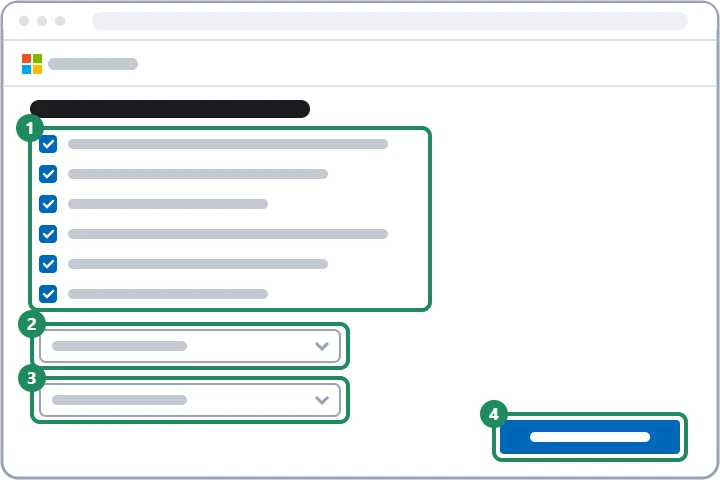
- Microsoft lists what will be lost with the closure. Tick the checkbox for each item to confirm having read it.
- Choose the reopening period: 30 or 60 days. If unsure whether every backup is in place, the longer one is safer.
- Select the reason for closing in the drop-down list.
- The “Mark account for closure” button completes the process. From then on, the account cannot be used, but it has not been deleted yet.
Reopening within the grace period
During the chosen period, sign in at account.microsoft.com and enter the code sent to the security info; this reopens the account. The mailbox, OneDrive, Xbox profile, Rewards points and purchased content come back. The remaining time of a subscription that was not cancelled is kept, but Microsoft does not give back the days that passed during the closure; a cancelled subscription, or one that expired in the meantime, has to be bought again. After the period ends, the account and all its data are permanently deleted and cannot be restored, even with the same address.
- Back up and cancel
- Mark for closure
- 30 or 60 days: can be reopened
- Permanent deletion
Automatic closure due to inactivity
Under Microsoft's account activity policy, a personal account that nobody signs in to for two years counts as inactive and may be closed. The same applies to an account that has stayed locked for more than two years.
- What keeps the account active: an active Microsoft subscription, an unspent balance, a Microsoft certification, an app published in the Microsoft Store, or if the account gave parental consent for an active minor's account.
- What is not enough: buying a gift card does not count as activity by itself.
- Checking: the account management page shows the activity status, that is, how often a sign-in is needed. A recent purchase may only appear here after 30 days.
- An account deleted due to inactivity cannot be reopened, so signing in to a rarely used but important account (for example an old Hotmail address) at least once a year is recommended.
If it doesn't work
Can I create a new account later with the same email address?
With an own address (for example Gmail), yes, after the final deletion. An @outlook.com or @hotmail.com address, however, cannot be registered again even after deletion, according to the help, so the old content cannot be recovered either.
Can the account be closed through customer support?
No. Closing requires signing in, and customer support cannot change the account's details either. Anyone offering “account closure” or “reopening” by phone for a fee is a scammer.
What happens to the Windows PC I signed in to with the account?
The account can no longer be used to sign in to the computer. Before closing, switch to a local account or another Microsoft account, and save the BitLocker key.