Netflix: checking signed-in devices and signing them out
Over time, a Netflix account collects plenty of devices: the living room TV, phones, a laptop, a hotel TV, a media player sold long ago. The “Manage Access and Devices” page shows which of them have watched with the account recently, and any of them can be signed out from there, even if the device is no longer in the owner's hands.
In this article
Where is the device list?
The shortest route is netflix.com/manageaccountaccess, which opens the device list directly after signing in. It can also be reached from the account page (netflix.com/account), among the security and device settings. On a phone, in the Netflix app, the “Account” item in the menu of the “My Netflix” tab opens the same page in a browser view. The device list cannot be managed on a TV; a phone or computer is needed.
What does the list show?
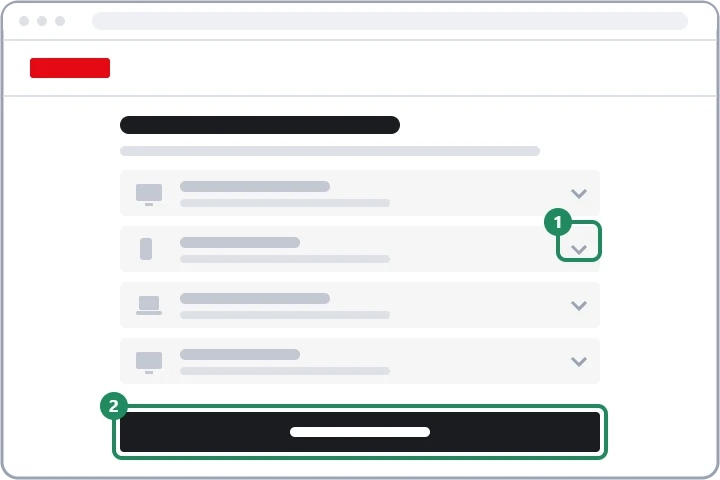
The list shows the devices that have recently streamed with the account. For each device, it shows:
- the device type (for example TV, phone, browser);
- the profile last used to watch on it;
- the date and time it was last used to watch.
What the list does not show
The Help Center points out several limitations, so a missing device does not prove that it is not signed in.
- A new device may take up to 48 hours to appear on the list.
- Devices that have not been active in the last 90 days are not listed, nor are those used only for Netflix games or for Tudum.
- Complete information is not shown for every device.
- The Netflix app installed on Windows may appear as the Edge browser.
- No exact location is shown next to a device, so a TV with an unfamiliar name may still be your own; the last profile and time help identify it.
Signing out one device
This is useful when one specific device needs to go and the others should not be disturbed: a TV that was sold or given away, an account left signed in at a hotel, a former flatmate's laptop. According to the Help Center, the feature requires an active subscription.
- Open the “Manage Access and Devices” page.
- Tap or click the down arrow next to the device to sign out.
- Choose “Sign Out”. The device will need to be signed in again next time.
Signing out of all devices
This is the quicker solution if the list has many unfamiliar devices, if the account has seen suspicious activity, or if the household error keeps coming back because of a long-forgotten device. Every device is removed from the account, including your own, and each one has to be signed in again.
- At the bottom of the “Manage Access and Devices” page, choose “Sign Out of All Devices”.
- Confirm with the “Sign Out” button.
- If someone used the account without permission, change the password right afterwards; otherwise they can sign back in with the old one.
- When changing the password, the same can be done in one step: the Help Center recommends leaving the “Sign out of all devices” box ticked when saving the new password.
When is it worth checking the list?
- Before selling or replacing a device: the Help Center asks users to sign out of a device before passing it on. If that was missed, the list helps.
- After using a public or shared device: a hotel TV, a borrowed laptop, a work computer.
- With the household error: a device left signed in elsewhere can also cause it: Netflix error: the TV isn't part of the Netflix Household.
- If too many people watch at the same time: the number of simultaneous streams depends on the plan: Changing the Netflix plan and the payment method.
- If profile activity looks suspicious: for each profile, “Viewing activity” in the “Profiles” section of the account page shows which titles were watched.
If it doesn't work
I see an unfamiliar device on the list. Has the account been hacked?
Not necessarily: it may be a family member's new phone or a long-forgotten device. If nobody recognizes it, sign it out and change the password; further steps: Hacked Netflix account: first steps.
I signed out a device, but it is still on the list. Why?
The list does not update immediately; according to the Help Center, changes can take up to 48 hours to show. If someone watches on the signed-out device again, they know the password, so that needs to be changed too.
Can I sign out on the TV itself, without the list?
Yes, the Netflix app on the TV also has a sign-out option in its menu. The list is needed when the device is no longer at hand or when many devices have to be signed out at once.