Netflix error: the TV isn't part of the Netflix Household
Netflix stops playback with this message when it cannot link a TV or other device to the account's Netflix Household. The message does not mean the account has been blocked: choose the option offered on the screen that fits the situation. The household rules, extra members and moving are covered in <a data-cikk="netflix-haztartas">Netflix Household and extra members: the rules for sharing an account</a>.
In this article
Versions of the message
The Help Center lists three wordings, and all three mean the same thing: Netflix could not associate the device with the household. Netflix determines the household based on the internet connection (IP address), device IDs and account activity, so a new router, a change of internet provider or a trip can also trigger it.
- “Your TV isn't part of the Netflix Household for this account”: on a TV, media player or streaming stick.
- “Your device isn't part of the Netflix Household for this account”: can also appear on a phone or computer.
- “This device isn't part of your Netflix Household”: a shorter version for the same situation.
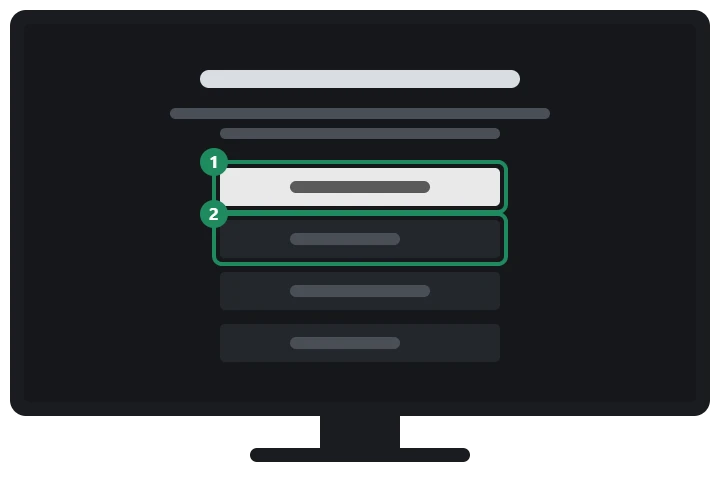
- “Update Netflix Household” in the error message or in the “Get Help”/“Settings” menu
- Confirmation in the email sent to the account's email address
- If that fails: “Troubleshoot This TV” with a phone on the same Wi-Fi
- In a temporary place (hotel, holiday home): “I'm Traveling”, then request a code
- In the account owner's email, “Get Code” shows the 4-digit code
- For a member of another household: their own account or an extra member slot
The TV is at home, but the message still appears
This is the most common case after a new router, a change of internet provider or a move. The fix is to update the household from a TV connected to the main home's network. If there is a problem with the account itself (for example, the email address on file is invalid), the update option does not appear at all; in that case, first make the correction requested on the screen.
- Choose “Update Netflix Household” in the error message (it is also available in the “Get Help” or “Settings” menu).
- With “Send Email”, Netflix sends a verification email to the account's email address; if there is no email address, a text message.
- Approve the update in the email. The detailed steps are in the article on the Netflix Household.
- “Troubleshoot This TV”: a solution without updating. It needs a phone or tablet with a camera connected to the home Wi-Fi; use it to scan the QR code shown on the TV, then choose “Start Watching”. If the phone cannot reach the home network, another TV belonging to the household can be used for the check.
- “Confirm Device”: this also appears on some TVs and media players. In the account owner's email, choose the “Yes, Confirm Device” button, then “Continue to Netflix” on the TV.
It appears on a phone or computer
In this case, first check whether the phone or laptop is connected to the same Wi-Fi as one of the household's TVs. If it is and the error persists, update the household from the TV, then restart the app or refresh the website. If no TV is available, “Watch Temporarily” requests a code, which is validated in the app or browser with the “Submit Code” button.
Traveling: temporary access code
On a TV in a hotel, at a friend's place or in a holiday home, the “I'm Traveling” option is the solution. It does not work from a Kids profile, so choose an adult profile first. On the “Let's make sure this is your account.” screen, choose “Send Email”; in the account owner's email, “Get Code” opens a web page with the 4-digit code. Enter it on the TV, then choose “Next”.
- The code expires after 15 minutes. If the link in the email opens the Netflix home page instead of the code, the code has already expired, and a new one has to be requested from the TV.
- If the email does not arrive, check the junk, spam and promotions folders, then choose “Send Again”.
- If the “I'm Traveling” option has disappeared, the number of temporary codes that can be requested for that TV has run out.
If the code does not work
- “That code has expired”: it was not entered within 15 minutes; request a new code.
- “That code didn't work”: there was a typo. After several failed attempts, the message “You don't have any more attempts” appears, and the device is blocked for 24 hours.
- “You can't request any more codes today”: the daily limit has been reached; try again later.
- The account owner's email address is not accessible: the code may only be shared with household members. If nobody has access to the email address, the email address or phone number can be changed in the account.
If the error keeps coming back
According to the Help Center, a common cause is an old sign-in: a hotel TV, a media player left at a friend's home or a sold device that still belongs to the account and confuses the detection of the household's location. In this case, sign out the unknown devices, then update the household again from the main home. The steps: Netflix: checking signed-in devices and signing them out.
If it doesn't work
Someone else uses my account and is not a household member. What does Netflix show them?
The same message. According to the Help Center, someone who is not an extra member and does not live in the main household can start their own membership with “Create an Account”, or the account owner can buy an extra member slot for them.
A code request email arrived, but nobody in the family is traveling. What should be done?
The code must not be passed on. Someone is probably trying to use the account on a TV elsewhere; sign out the unknown devices and change the password: Hacked Netflix account: first steps.
How long does temporary access last?
The 4-digit code has to be entered within 15 minutes. How many days Netflix can then be watched on the other TV with the code is not stated in the Help Center; after it expires, a new code can be requested on the TV as long as the limit for the device allows.