Signing in to other sites with a Google Account: managing linked apps
The “Sign in with Google” button is convenient: there is no new password to think up, and signing in takes one click. At the same time, it creates a link between the Google Account and another company's app, and some apps ask for access to emails, files or the calendar on top of signing in. These links stay in place for years, so it is worth reviewing them from time to time and removing what is no longer needed.
In this article
What happens with the “Sign in with Google” button?
When the button is pressed, Google asks for sign-in in its own window and shows what the other site will receive. For a simple sign-in this is the basic profile info: name, email address and profile picture. The Google Account password does not reach the other company, and the sign-in is protected by the Google Account's security settings (2-Step Verification, passkey). The price is that many sites rely on a single account: if the Google Account is lost or hacked, all of these sign-ins are affected too.
Types of links
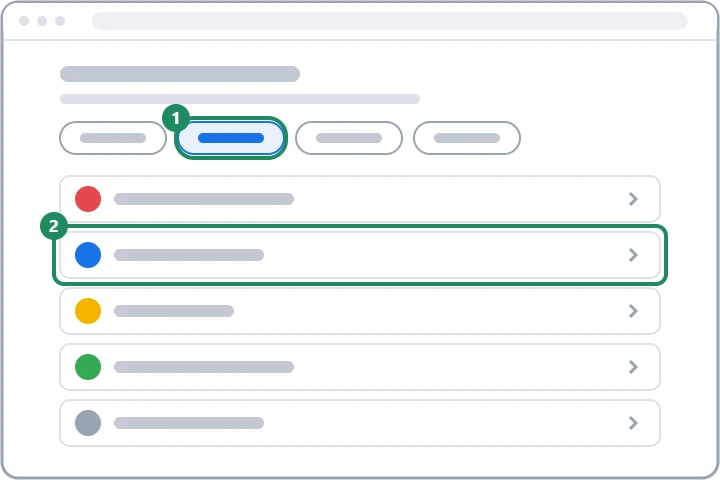
The linked apps page separates the links with filters, because they carry different risks:
- Sign in with Google: the site only receives the basic profile info and allows sign-in with the Google Account.
- Access to your Google Account: the app can see and copy data (for example contacts, photos) or even manage it (send emails, delete files, create calendar events). Some access is one-time only or valid for 30 or 180 days, and Google sends a reminder before it expires.
- Linked account: the reverse direction, where Google accesses an account in another service (for example a music or smart home service).
- Agent access: Gemini or another agent carries out tasks with an app on the user's behalf.
Where are the links listed?
In a browser, myaccount.google.com/linkedapps opens the linked apps page; on the account page it can also be reached from “Security & sign-in”. On Android, the same account page appears under Settings → Google → Manage your Google Account, and on iPhone by tapping the profile picture in the Google or Gmail app. For each item, the list shows the type of link and how long it has existed.
Warning signs
- An app is on the list that the owner does not remember, or that a family member or colleague used on their computer.
- A simple game, quiz or “free tool” has full management rights to Gmail, Drive or contacts.
- The app has not been used for years but still has access to the data.
- After an account takeover, a new, unknown link appeared; this way the intruder can keep reading emails even after the password change. In that case, the full check follows Hacked Google Account: first steps.
Removing the permission
- On the linked apps page, choose the type of link, then the app, and click “See details”.
- For data access, choose “Remove access”.
- For a simple sign-in, the “Stop using Sign in with Google” button ends the link.
- For a linked account, use the “Delete link” button.
- In every case, approve with the “Confirm” button. For a suspicious app, the “Report this app” option lets Google know as well.
What remains after removal?
Removal only applies to the future: the app can no longer access the Google Account, but whatever it has already taken (for example a copy of the contacts) stays on the company's servers; deleting it has to be requested from the company. When the sign-in is stopped, the account on the other site and its data are not deleted either; only signing in with the Google Account ends. If there is no separate password there, set one in the site's settings beforehand or request one with the forgotten password feature, otherwise the account may become inaccessible.
Before granting permission
- Read in Google's window what the app is asking for. If it wants to manage emails just to sign in, be suspicious.
- The address bar of the permission window shows accounts.google.com. If a form that looks like a Google sign-in opens on an unfamiliar site, it may be phishing: Google Account scams and fake security alerts.
- If the app asks for several pieces of data, they can be allowed one by one; there is no need to accept everything.
- Reviewing the links is also part of Google's Security Checkup: Google Security Checkup: reviewing the account in a few minutes.
If it doesn't work
Does the website learn my Google password if I sign in with Google?
No. Only Google asks for the password, in its own window; after consent, the site only receives the approved data.
Do I lose my account on a site if I stop signing in with Google there?
The account there remains, but another way to sign in is needed. So before removing the link, set a password on the site, or check that a new password can be requested with the email address.
Is Sign in with Google more secure than a separate password?
There are fewer passwords to remember, and the Google Account's protection (2-Step Verification, passkey) applies to every such site. The downside is that everything depends on one account, so the Google Account needs to be especially well protected.