Google Security Checkup: reviewing your account in a few minutes
Security Checkup is the Google Account's own free review: a single page shows what deserves attention and offers a direct button to fix each item. No expertise is needed, and it usually takes less than five minutes to go through. It is worth running a few times a year, and also after changing phones, after a suspicious email or after losing a device.
In this article
Where is it?
The shortest route is the myaccount.google.com/security-checkup address. There is also a link to it at the top of the “Security & sign-in” section of the account page, and Google's introduction page lists it as “Security Checkup”. On Android, Settings → “Google” → managing the account opens the same page. A summary appears at the top: a green check mark if there is nothing to do, a yellow or red sign if Google has a recommendation. Below it, there is a card for each topic; each one can be expanded, and the fix can be made right there.
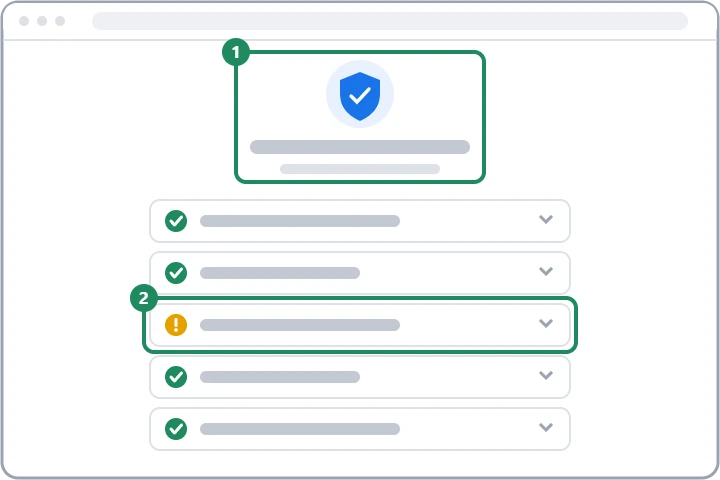
1. Signed-in devices
This shows the phones, computers, tablets and TVs on which the account is signed in, or was signed in during the past few weeks. Each device shows its type, approximate location and last use.
- Sign out an unknown device from the menu on the card; changing the password is also a good idea in that case.
- Old, sold or no longer used devices should also be signed out, because they still have access to the account.
- The location is estimated from the network, so a nearby different town is not necessarily suspicious.
2. Third-party access
This section shows non-Google apps and websites that have access to some of the account's data, such as contacts, Drive or Gmail, or that were signed in to with the “Sign in with Google” button. Google flags access that is risky or has not been used for a long time.
- If an app is no longer used or is unfamiliar, remove its access; after that, the app can no longer reach the account.
- Access with broad permissions (for example, permission to read or delete emails) deserves a particularly careful look.
- Details and the steps to revoke access: Managing connected apps.
3. Sign-in and recovery
This card shows how it is possible to sign in to the account and get back into it: the recovery phone, the recovery email, 2-Step Verification and passkeys. If any of them is missing or has not been confirmed for a long time, Google asks for an update here.
- Replace an outdated phone number or a closed email address; details: Setting up a recovery phone and recovery email.
- If there is no second step, 2-Step Verification can be started here with one click, or a passkey can be created.
4. Recent security events
Important events from the past four weeks are listed here: a sign-in from a new device, a password change, changed recovery details, a blocked suspicious sign-in attempt. For each event, it is possible to confirm whether it was the owner.
- If an event is familiar, confirming it clears the warning.
- If it is not familiar, a “that wasn't me” type of answer starts a protection process: changing the password, signing out devices, reviewing the settings. Further steps: Hacked Google Account: first steps.
Other cards
- Saved passwords: if any password stored in Google Password Manager appeared in a known data breach, is weak or is reused on several sites, Google flags it, and the passwords can be changed one by one in the password manager.
- Gmail settings: Google warns if the mailbox has automatic forwarding to an unknown address or an unusual filter, because people who hack accounts often use these to hide their tracks.
- Extra protection: Google may recommend the stronger level of Safe Browsing (Enhanced protection) for browsing, and the Advanced Protection Program for users at high risk.
If it doesn't work
How often should it be done?
There is no required frequency. Every few months is enough, and it is definitely worth doing after setting up a new phone, selling an old device, receiving a suspicious email or text message, or when Google itself sends a warning.
Does Security Checkup change anything in the account?
Not on its own. It only shows the situation and makes recommendations; every change (signing out, removing, new details) has to be approved by the user.
Is an email asking me to do a Security Checkup genuine?
Google may send such a notification, but it is safer not to click the link in the email and to type the myaccount.google.com address directly instead. Recognizing fake warnings: Google Account scams.