Turning on 2-Step Verification for a Google Account
With 2-Step Verification, a password alone is not enough to sign in to a Google Account: on a new device, a second step is also needed, such as approving the sign-in on the phone. This way, nobody else can get in even with a leaked password. Setup takes a few minutes, but it deserves attention before changing phones, because the second step is often tied to the old phone.
In this article
Options for the second step
- Google prompt on the phone: an Android phone signed in to the account (and an iPhone with the Google or Gmail app) asks whether the owner is trying to sign in; approve it with the “Yes” button. This is the most convenient option.
- Authenticator app: Google Authenticator (Android, iPhone) or another code-generating app gives a new code every 30 seconds, even without internet or mobile signal.
- Code by text message or call: a six-digit code sent to the phone number on file. Simple, but the phone number can be hijacked (for example through fraudulent SIM swapping), which is why Google also considers the other options more secure.
- Security key: a USB, NFC or Bluetooth device that has to be plugged in or tapped when signing in; it does not work on a phishing site.
- Backup codes: 10 single-use, eight-digit codes, printed or saved in a safe place. They can save the day when the phone is not at hand.
- Passkey: a passkey signs in with a fingerprint or the screen lock, with no separate second step: Passkeys for a Google Account.
Turning it on step by step
For work or school accounts, the administrator may require or disable 2-Step Verification; the steps may differ in that case.
- In a browser, open myaccount.google.com; on Android, Settings → “Google” → managing the account leads to the same place.
- Select the “Security & sign-in” section.
- Under “How you sign in to Google”, click “Turn on 2-Step Verification”. Google may ask for the password again.
- The on-screen steps ask for a phone number and send a code to it. If the account is already signed in on an Android phone, the Google prompt is automatically listed as a second step.
- After it is turned on, more methods can be added on the “2-Step Verification” page: authenticator app, security key, backup codes.
Getting backup codes
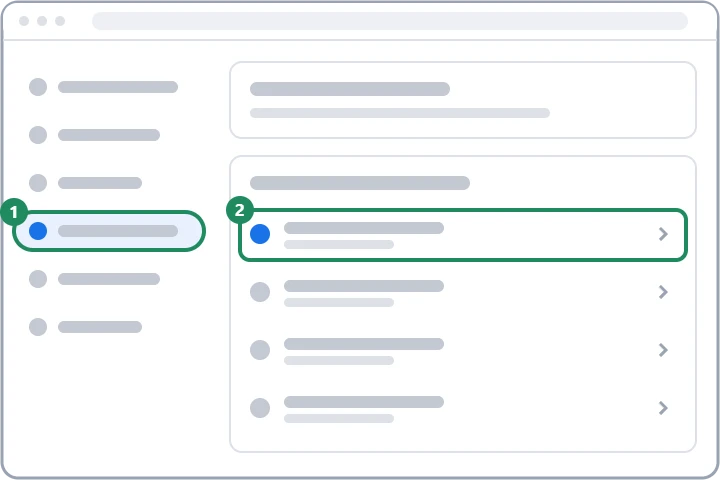
- In the “Security & sign-in” section, open “2-Step Verification”.
- Under “Backup codes”, select “Continue”, then “Get backup codes”.
- Print or download the codes and keep them separate from the phone.
- Each code can be used once. If they have run out or may have fallen into the wrong hands, a new set can be requested; the old codes then stop working.
Before changing phones
- Google prompt: it is enough to sign in to the same Google Account on the new phone; reset the old phone only after that.
- Google Authenticator: if the app backs up the codes to the Google Account, they come back after signing in on the new phone. Without a backup, choose the option to transfer (export) accounts in the app on the old phone, and scan the QR code shown with the new phone. Delete from the old phone only after a successful transfer.
- Phone number: if the number also changes, first add the new one to the account and only then remove the old one.
- Backup codes: check whether unused codes are still left and whether they are at hand.
- If a phone is lost or stolen, sign in on another device and sign the old phone out from the account's device list.
If the second step does not work
If neither the phone nor a backup code is available, the “Try another way” option on the sign-in page offers other methods. If none of them work, account recovery remains, which can take several days: I cannot sign in to my Google Account. When travelling abroad without text messages: Signing in to Gmail from abroad: when the text message code does not arrive.
Security warning
The second step only protects the account if the code or the approval does not end up in someone else's hands. If someone asks for a verification code by phone, message or email, or an unexpected sign-in request appears on the phone, it must be declined: Google Account scams.
If it doesn't work
Is the second step needed for every sign-in?
No. On a trusted device where this was approved at sign-in, Google usually does not ask again later. It does ask on a new device, in a new browser or from an unusual location.
Can 2-Step Verification be turned off?
Yes, on the same page where it was turned on. It is not recommended, because afterwards the password alone is enough to sign in; for a work account, the administrator may prevent it.
Which option is the most secure?
Passkeys and security keys, because they do not work on a fake site. Google prompts and authenticator apps are also strong; text messages are the weakest, but still much better than a password alone.