Hacked Google Account: first steps
A Google Account is the key to many services: besides Gmail, the YouTube channel, Drive files, photos, the Android phone, the payment method stored in Google Play and the passwords saved in Password Manager all belong to it. If someone else has access, the steps therefore have to be done in order: first regain control, then lock the intruder out, and finally find out what they changed. Gmail's own settings are covered in a separate article.
In this article
Signs of a hacked account
- Google sends a notification or email about a sign-in from an unknown device, a password change or new recovery details that the owner did not initiate.
- A verification code arrives, or the phone shows a sign-in prompt, even though nobody tried to sign in.
- The password suddenly stops working, or the account shows a changed name or profile picture.
- Contacts receive strange emails in the account's name; unknown videos appear on the YouTube channel, or unknown shares in Drive.
- An unknown purchase shows up in Google Play or Google Pay.
1. Regaining control
If signing in still works, change the password immediately in “Security & sign-in” on myaccount.google.com, in the password row. The old password also has to be changed on every other site where the same one was used. If the computer may be infected (after a suspicious program or browser extension), make the change from another, trusted device. If the intruder has already changed the password or the recovery details, start on g.co/recover: I can't sign in to my Google Account: how account recovery works.
2. Security events and devices
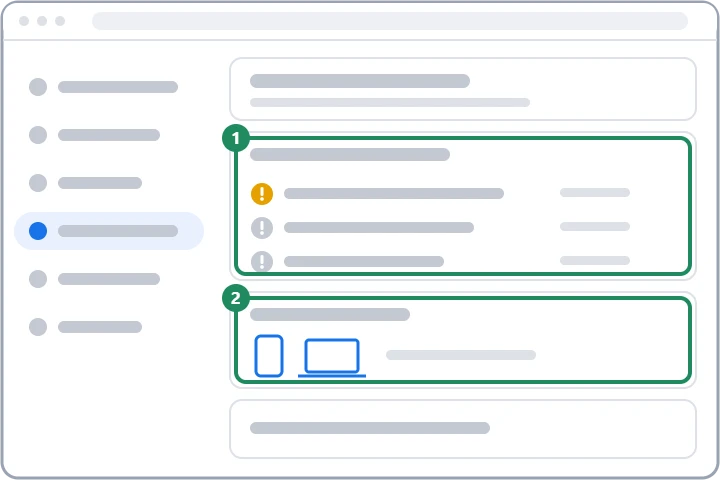
Two parts of the “Security & sign-in” page show what happened to the account and where it is signed in.
- In “Recent security events”, choose “Review security events”. If the owner did not perform an event, choose the “No, it wasn't me” button and follow the instructions on the screen.
- In “Your devices”, “Manage devices” shows which phones, computers and browsers the account is active on.
- Sign the account out of every unknown device; if a device cannot be identified, the “Don't recognize a device?” option walks through what to do.
- Also remove the owner's own devices that were lost or sold from the list.
3. Checking the key settings
An intruder often leaves something behind that lets them come back even after the password change. Go through these one by one and fix anything unfamiliar right away:
- Recovery phone number and email address: there must be no unknown number or address among them: Setting up a recovery phone number and email address for a Google Account.
- 2-Step Verification: check that no unfamiliar phone, authenticator app or security key is among the methods; it is worth generating new backup codes.
- Passkeys: check in “Security & sign-in” that there is no unknown passkey; delete anything unfamiliar.
- Apps with access: an app authorized by an intruder can keep reading emails after the password change: Signing in to other sites with a Google Account: managing linked apps.
- Name, location sharing: the name shown on the account and the location sharing set up in Maps must not be in a stranger's hands either.
4. Gmail and the other Google services
- Gmail: automatic forwarding, filters, mail delegation, automatic reply and sent emails. The steps: Hacked Gmail account: first steps.
- Payments: report unauthorized purchases in Google Play and Google Pay, and delete unknown payment methods. In case of misuse, notify the bank too.
- YouTube: channel name, profile picture, uploaded videos and comments.
- Drive and Photos: unknown shares, deleted files, unfamiliar albums.
- Google Password Manager and Chrome: if passwords were saved in the account, change them on the important sites as well (bank, email, social media); remove unknown extensions and payment details from Chrome.
5. Protection afterwards
- Turn on 2-Step Verification: Turning on 2-Step Verification for a Google Account.
- A passkey also protects against fake sign-in pages, because it only works on the real Google page: Passkeys (passwordless sign-in) for a Google Account.
- Set a screen lock on the phone and run a virus scan on the computer.
- Most hacks start with a fake email, text message or call: Google Account scams and fake security alerts.
If it doesn't work
I received a verification code I didn't request. Has the account been hacked?
Not necessarily, but someone probably knows the password and tried to sign in. Never give the code to anyone, reject the sign-in prompt and change the password immediately.
Will Google give the account back if the intruder changed everything?
Only through account recovery, which decides based on previous devices, passwords and recovery details. For a free account, human support cannot override this, so during recovery answer as many questions as possible, from the usual device.
Should I sign out my own devices too?
It is not required, but if it is unclear which device belongs to whom, it is simpler to sign out everywhere and then sign back in on your own devices with the new password.