Checking signed-in devices and signing out of a Google Account remotely
A Google Account can be signed in on a phone, a laptop, an old tablet, the TV and a work browser all at once. The account page shows these in one list, and the account can be signed out of any of them remotely, for example when a phone was lost or sold, or the account stayed signed in on someone else's computer. The list is also an early warning: an unknown device may point to a hacked account, but there is often an innocent explanation.
In this article
Where is the device list?
The list is in the same place in a browser and on a phone. On Android, the account can also be managed from the phone's Settings under “Google”; on an iPhone, under the profile picture in Gmail or the Google app.
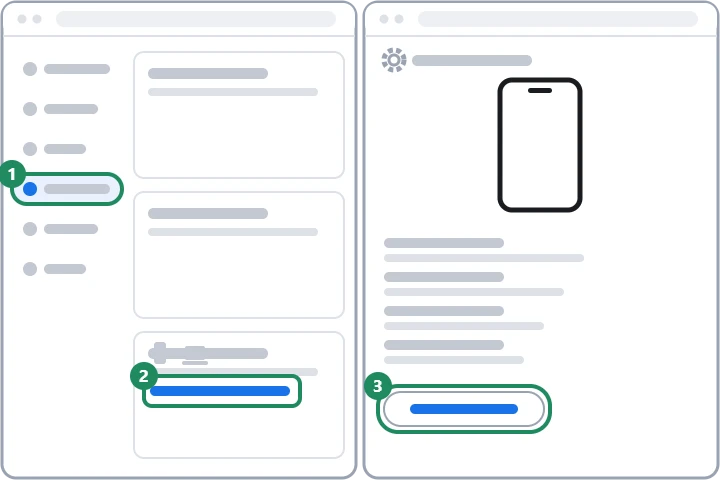
- Open myaccount.google.com and sign in to the account.
- In the menu, choose “Security & sign-in”.
- Scroll down and, on the “Your devices” panel, click “Manage all devices”. The address myaccount.google.com/device-activity also leads straight here.
What does the list show?
- Devices and sessions: the list shows the phones, computers, tablets and other devices on which the account is signed in now or was signed in during the last few weeks.
- Details: clicking an item shows the device type, the browser or app, the approximate location and the time of the latest activity.
- “Signed out” label: devices the account has already left show this label; nothing needs to be done with them.
- The time: it shows when the device last communicated with Google's systems. Background syncing (for example Gmail or Calendar updates) also counts, so a more recent time may appear than when the owner actually used the device.
Why does the same device appear several times?
In some cases Google shows sessions instead of devices. A session is the period during which the account is signed in to a particular browser, app or service. A new session starts when someone signs in on a new device or in a new browser, when the password has to be entered again, when an app gets access to the account, and also when signing in from an incognito window. A single phone can therefore appear in two or three rows. If it is not clear that all rows with the same name belong to the owner's own device, sign out of each of them.
Signing out remotely
For a lost or stolen phone, besides signing out it is worth locating, locking or remotely erasing the device: Find, secure or erase a lost Android device. Before selling or giving away a device, also sign the account out of it before the factory reset.
- In the device list, click (on a phone, tap) the device or session to be signed out.
- On the details page, choose the “Sign out” button, then confirm.
- If there are several sessions with the same device name, repeat the step for each of them.
- If the device was in someone else's hands, change the password as well, because signing out only ends the existing session; anyone who knows the password can sign in again.
Unknown device in the list: when is it harmless?
According to Google's help, a row that looks unfamiliar is often the owner's own activity. Before raising the alarm, it is worth thinking through the following:
- A new phone or computer was recently put into use, or a device went through a factory reset (the old entry may still be visible in that case).
- The sign-in happened on a family member's or colleague's device, or on a public computer (library, hotel).
- The location is not exact: Google estimates it from the network, so a nearby city, an airport or a place passed through on a journey may appear.
- A different browser (for example Safari instead of Chrome) is shown because an app signed in with its own built-in browser.
If the device is definitely someone else's
If the row fits none of these explanations, someone else knows the password or has access to the account through a compromised device. In that case signing the device out is only the first step: a new password is needed immediately, and the recovery details and the apps with access must be reviewed. The full sequence: Hacked Google Account: first steps. The device list is also shown by the Google Security Checkup together with the other security settings, so for a rarely used account it is worth running it once a year.
If it doesn't work
I signed a device out, but it reappeared a few days later. What happened?
Someone signed in on it again. If it is the owner's own device, it probably signed back in automatically with the saved password. If it is someone else's, change the password and check the 2-Step Verification methods, because signing out does not change the password.
My TV or my car also shows up. Is that normal?
Yes, if the account is signed in, for example, on a Google TV, a smart speaker or the car's Android Auto system. If the TV no longer belongs to the owner (for example, it stayed behind in a rented flat), sign the account out of it too.
Do I get a notification when someone signs in to the account on a new device?
Yes, after a sign-in from a new device Google usually sends a security alert to the account and to the recovery email address. Check whether such an email is genuine on the account page, not through the link in the email.