Passkeys (passwordless sign-in) for a Google Account
A passkey is a sign-in method that replaces the password: the sign-in is confirmed with the screen lock of the phone or computer, using a fingerprint, face recognition or a PIN. Google has offered passkeys since 2023. A passkey cannot be revealed, typed in or entered on a fake site, so it also protects against phishing.
In this article
How does it work?
A passkey has two parts: a public part stored by Google, and a secret part that stays on the device or in the password manager and never leaves it. When signing in, Google sends a challenge that only the secret part can sign, but the screen lock has to be unlocked first. The fingerprint or face image never reaches Google; it is only used for unlocking locally. A passkey also replaces both the password and the second step of 2-Step Verification: Turning on 2-Step Verification.
What is needed?
- A computer running Windows 10, macOS Ventura or ChromeOS 109, or later.
- A phone running Android 9 or iOS 16, or later.
- An up-to-date browser: Chrome, Safari, Edge or Firefox (the help also lists the minimum versions).
- A screen lock turned on (PIN, pattern, password, fingerprint or face recognition).
- For work or school accounts, the administrator's permission may also be needed.
Creating one on a phone or computer
On Android, Google often creates a passkey automatically on a phone signed in to the account; it also appears in the list. Passkeys created on Android and in Chrome can be carried over to the account's other devices by Google Password Manager. On iPhone and Mac, the passkey is typically saved to iCloud Keychain. A passkey can also be saved to a security key (FIDO2): choose “Use another device” when creating it.
- On the device that will store the passkey, open myaccount.google.com/signinoptions/passkeys (it can also be reached from the “Security & sign-in” section).
- Select the “Create a passkey” button.
- The device asks to unlock the screen lock; this creates the passkey.
- To sign in this way from several devices, repeat the steps on each one, or let the password manager sync the passkey.
Signing in with a passkey
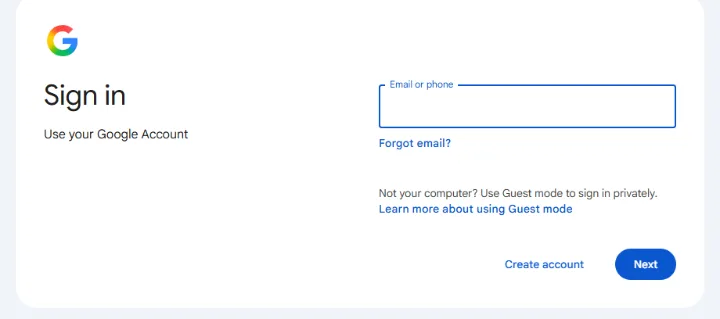
On the “Sign in” page of accounts.google.com, enter the account's address in the “Email or phone” field, then click “Next”. If there is a passkey on the device, Google asks to unlock the screen lock instead of the password. If it asks for the password anyway, the “Try another way” option switches to the passkey.
Signing in on another device, such as someone else's computer
On a shared or unfamiliar computer, sign out after use and do not let the browser save a new passkey.
- Enter the account's email address on the computer.
- Choose “Try another way”, then “Use your passkey”; a QR code appears on the screen.
- Scan the code with the camera of the phone that stores the passkey, and approve the sign-in on the phone (on iPhone, with the “Sign in with a passkey” option).
- Unlock the phone's screen lock. Bluetooth must be turned on on both devices for this; the passkey is not copied to the computer.
If the phone is lost or stolen
- A thief cannot use the passkey without knowing the screen lock, so a solid screen lock (PIN, fingerprint) matters here too.
- Sign in to the Google Account on another device (with another passkey, the password or a backup code) and remove the lost device's passkey from the passkey list.
- For a passkey created automatically by Android, select the phone in the “Manage all devices” list in the “Security & sign-in” section, and sign it out with the “Sign out” button.
- If the passkeys were synced in Google Password Manager or iCloud Keychain, they become available again after signing in on the new phone.
- If no other sign-in method is left, account recovery helps: how account recovery works. That is why it is worth keeping recovery details up to date as well: Recovery phone and recovery email.
If it doesn't work
Does my password disappear if I create a passkey?
No. The password remains and can be used on devices without a passkey. It should therefore still be strong and unique.
How many passkeys can I have?
Several: one on each device or password manager. In the “Security & sign-in” section, the passkey list shows where each one was created and when it was last used.
Can a Google passkey be used on other sites?
No, each passkey belongs to a single site or app. Google Password Manager can, however, store passkeys for other websites as well.