Downloading Google data with Google Takeout
Google Takeout is Google's own export tool: it gathers the account's emails, photos, Drive files, calendars, contacts and much other data into an archive. It is useful as a backup, before switching services, or before an account has to be deleted. Downloading deletes nothing: the data also stays on Google's servers.
In this article
What can be downloaded?
The Takeout page automatically selects the Google products in which the account has data. The list is long; the most common ones:
- Gmail: the emails together with their labels; individual labels can also be selected separately.
- Google Photos: photos and videos, which can be narrowed down by album.
- Drive: uploaded files and Google Docs, Sheets and Slides.
- Calendar, Contacts, Keep: events, address book, notes.
- YouTube: the owner's uploaded videos, playlists, history. If some videos are missing, they may belong to a Brand Account, and switching to that account may be necessary.
- Account activity: for example registrations, My Activity items, Chrome bookmarks.
The export step by step
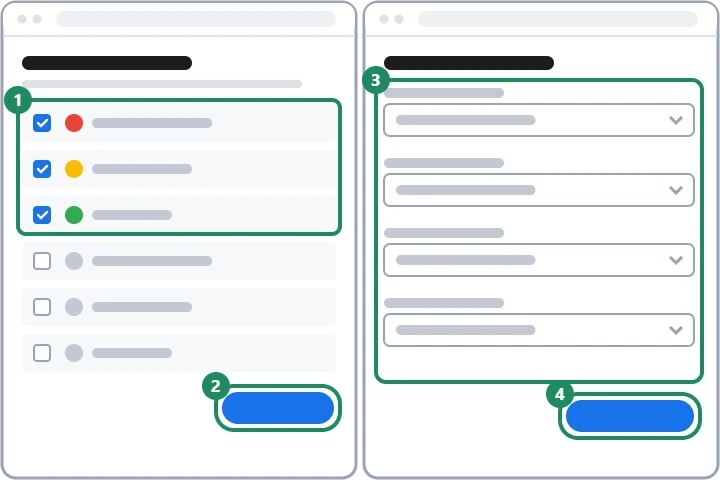
- On takeout.google.com, untick the products that are not wanted. If only a few are needed, it is easier to start with the “Deselect all” button and then tick the necessary ones one by one.
- Within a product, buttons such as “All data included” narrow the scope, for example so that only certain Gmail labels or Photos albums are included.
- At the bottom of the list, click the “Next step” button.
- Under “Delivery method”, choose from “Send download link via email”, “Add to Drive”, “Add to Dropbox”, “Add to Microsoft OneDrive” or “Add to Box”.
- The “Export type” can be “One-time archive” or “Scheduled exports”; the latter creates a new archive every two months for a year.
- The “File type” can be ZIP or TGZ, and “Archive size” sets how large the pieces are into which the system splits a big export.
- Finally, the button for creating the export starts the process.
- Select products
- Next step
- Delivery method, type, size
- Start the export
- Email about the finished archive
- Download before it expires
Which settings are best?
- ZIP or TGZ: Windows and macOS open ZIP files without any extra program, so in most cases this is the right choice. TGZ is common on Linux; Windows needs a separate extraction tool for it.
- Archive size: if the data is larger than the chosen size, several archives are created. For a large photo collection, a bigger size means fewer files, but each download takes longer and may break off on a slow connection.
- Sending to the cloud: if the computer is short of space, Drive, Dropbox, OneDrive or Box is convenient. When another provider is chosen, Google transfers the data on the owner's behalf, and after the upload that provider's terms apply. An archive saved to Drive also uses Google storage.
In what format does the data arrive?
The archive contains a separate folder for each product. Emails typically go into an MBOX file, which Thunderbird, for example, can read; calendars come in ICS and contacts in VCF format, which can be imported into other calendar and address book apps. Google Docs files are converted on export (for example into Word, Excel or PDF files), and next to the photos separate JSON files may store some metadata, such as the date or the description.
How long does it take, and what can go wrong?
- Duration: depending on the amount of data, from a few minutes to as long as a few days; according to Google, most people get the link the same day. In the Advanced Protection Program, the archive is scheduled two days later.
- Delay: if the request seems risky, Google may delay or refuse it to protect the account.
- Expiry: the download link is valid for a limited time, roughly a week, and an archive can only be downloaded a limited number of times; after that, a new export has to be requested. Google may ask for the password again when downloading.
- Missing items: changes made after the request and data that is in the process of being deleted are not included.
- Work or school account: the administrator can turn Takeout off.
When is it especially useful?
It is always worth exporting before deleting an account, because deleted data cannot be restored later: Deleting Gmail or closing the whole Google Account. Google may delete a rarely used account after two years of inactivity; for that, and for Inactive Account Manager, which shares the data with trusted contacts if the owner is no longer around, see Inactive Google Account.
If it doesn't work
Is the data deleted from Google if I download it?
No. Takeout only makes a copy; the emails, photos and files stay in the account. Deleting is a separate step.
Can I export the emails or photos of only a certain period?
There is no direct date filter, but Gmail can be narrowed down by label and Photos by album. To export emails from a given period, first mark them with a separate label, then export only that label.
Why did the archive arrive split into several files?
Because the data was larger than the archive size that was set. Download every part; each one can be extracted on its own.
The archive is ready, but the link no longer works. What should I do?
The link has expired, or the number of downloads has run out. Start a new export on the Takeout page; if downloads keep breaking off, it is worth choosing delivery to the cloud right away.