Resetting a forgotten Microsoft account password
A Microsoft account password unlocks Windows, Outlook, OneDrive and Xbox at once, so forgetting it causes trouble everywhere. A new password can be set as long as one of the verification methods added to the account (another email address, a phone number or Microsoft Authenticator) is available. The process can be started from a browser or from the Windows sign-in screen.
In this article
First, clarify: password, PIN or passwordless account?
- On a Windows PC, the PIN is not the account password. The Windows Hello PIN belongs only to that computer; if the user cannot remember it, the PIN has to be set up again, not the account password.
- Passwordless account: on most accounts created since 2025, and on those where the owner turned off the password, there is nothing to reset. Signing in works with a code, Authenticator approval or a passkey: Setting up a passwordless Microsoft account.
- Local Windows account: if the computer is signed in to with a local account rather than a Microsoft account, its password can be reset with the Windows security questions. The difference is explained here: Local account or Microsoft account in Windows.
- Only a change is needed: a known password can be replaced on the account.microsoft.com/security page.
Requesting a new password in a browser
The steps are the same in any browser, on a phone too. The process can also be started from the sign-in window that asks for the password, using the link for a forgotten password.
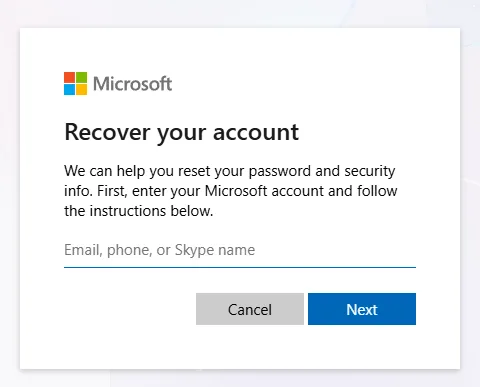
- Open the account.live.com/password/reset page.
- In the “Recover your account” window, type the account's identifier into the “Email, phone, or Skype name” field, then click “Next”.
- Microsoft lists the verification methods set up for the account, partly hidden. Choose the one that is available now.
- For an email address or phone number, type the first part of the address or the last four digits of the number as confirmation, then request a code.
- Enter the code received and continue with “Next”.
- Set the new password. Choosing a new one rather than a previously used password is recommended.
Verifying with Microsoft Authenticator
If the account is set up in the Microsoft Authenticator app on the phone, it also appears among the verification methods. In that case there is no need to wait for a text message or email: approve the request on the phone, or type the one-time code shown in the app. The code generated by the app works without internet access too. If the phone is new and the account has not yet been restored in Authenticator, this method cannot be used; choose another verification method.
Resetting from the Windows sign-in screen
If the computer is signed in to with a Microsoft account and password, Microsoft's help says the “I forgot my password” option under the password field starts the same process. The computer needs an internet connection for this. If the link is not visible, choose web sign-in under “Sign-in options” and click the forgotten password link there. If Windows can still be signed in to with a PIN, the password can also be changed under “Settings” > “Accounts” > “Sign-in options”: choosing to change it in the “Password” section, the “I forgot my current password” option leads further.
If no verification method is available
- An unfamiliar address or number appears: the account address may be mistyped, for example a country ending (.co.uk) instead of .com. If the address is definitely correct, someone else may have changed the account: Hacked Microsoft account: first steps.
- The recovery code is at hand: anyone who saved the 25-character recovery code when turning on two-step verification can verify the account with it by choosing the “I don't have access” type of option at the verification step.
- The code does not arrive: this is a separate problem with its own solutions: Microsoft account security code not arriving.
- Nothing works: Microsoft's sign-in helper goes through the options that remain. If that does not help either and two-step verification is not turned on, the account recovery form is the last route: Filling in the Microsoft account recovery form.
After the new password
Because the same account opens several services, the new password has to be entered everywhere the old one was saved: on Windows PCs (if sign-in uses a password), on the Xbox console, in the Outlook and OneDrive phone apps and in older email programs. Checking the security info is also worthwhile: if the old phone number or address no longer worked during the reset, replace them one at a time, because if all of them change at once, Microsoft may restrict the account for 30 days. Managing security info is covered here: Recovery email and phone number in a Microsoft account.
If it doesn't work
Is the Outlook.com password the same as the Microsoft account password?
Yes, an @outlook.com or @hotmail.com address is the Microsoft account itself, so the reset is the same too. Tasks specific to the mailbox (email programs, forwarding) are covered separately: Resetting a forgotten Outlook.com or Hotmail password.
Can customer support reset the password?
No. According to Microsoft's help, agents cannot send a password reset link or change the account's details. Anyone who promises this by phone or message is a scammer.
I can't remember which email address the account was created with. What should I do?
On the sign-in page, the “Forgot your username?” link helps find the account using an email address or phone number linked to it. On a Windows PC, the settings also show which account is used to sign in.