Signing in to Amazon (with a password or a passkey)
A single account is used to sign in to Amazon, whether shopping on amazon.de or in another country's store. The first step is always entering the email address or mobile number of the account; after that, depending on how the account is set up, Amazon asks for a password, a one-time code or a passkey. The labels quoted here are those of the English-language interface.
In this article
Signing in in a browser
- Type the store address (for example amazon.de) by hand or open it from a bookmark, not from a link in an email. The interface language can be changed with the language selector in the header (for example “EN”).
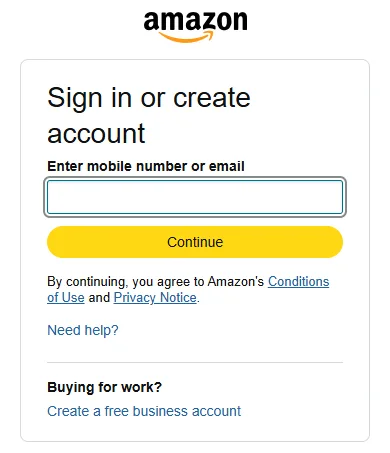
- Clicking the “Hello, sign in / Account & Lists” menu opens the “Sign in or create account” page.
- Type the email address of the account, or its mobile number including the country code, into the “Enter mobile number or email” field, then click “Continue”.
- For an account with a password, enter the password. For a passwordless account, Amazon sends a one-time code by email or text message; enter that.
- If a passkey is saved on the computer, Amazon offers to sign in with it; in that case unlocking the device is enough.
- From a new browser, after cookies have been cleared or from an unusual location, Amazon may ask for further confirmation: a six-digit code, approval of the sign-in in the Amazon app, or less often a security question.
Setting up and using a passkey
A passkey lets you sign in without a password, using the fingerprint, face recognition or PIN that unlocks the device. It does not work on a fake sign-in page, and the password remains available alongside it.
- After signing in, open “Login & security” on the “Your Account” page.
- Select “Set up” beside “Passkeys” and follow the on-screen instructions.
- The passkey is saved to the passkey provider's account (for example an Apple account or a Google account), so it also works on the other devices linked to that account. Only one passkey can be created per provider.
- On another device, a new one can be added with “Edit” next to “Passkey” and then “Add a passkey”, but only on your own device.
- On a computer without a passkey, a passkey saved on the phone can also be used: scan the QR code shown with the phone (Bluetooth is required).
Signing in in the Amazon Shopping app
The Amazon Shopping app shows the same first step, followed by a password, a code or a passkey. The app can also be used to approve sign-ins, so it is worth allowing its notifications. Several Amazon accounts can be added: switch between them under “Settings” in the menu with the “Switch Accounts” option. The account should not be added on a shared or someone else's phone.
“Keep me signed in”: when is it worth ticking?
With the “Keep me signed in” checkbox shown at the password step, Amazon does not ask you to sign in again in that browser for a longer time. On your own computer with a locked screen this is convenient, but on a shared or public computer it must not be ticked, because the next user would have access to the saved addresses, orders and 1-Click ordering. To sign out in a browser, use “Sign Out” in the “Account & Lists” menu; in the app, open the menu button at the bottom right and use the “Sign-out” option at the bottom of the page.
One account, several country stores
The same email address or mobile number and password can be used to sign in to the Amazon stores in the EU (for example amazon.de, amazon.fr, amazon.it, amazon.es, amazon.nl, amazon.pl, amazon.se, amazon.com.be), and even to amazon.co.uk and amazon.com, without a separate registration. Two things may differ from store to store, though: a passkey created in the browser may not work in another store (a new passkey or the password is needed there), and Prime membership and orders belong to the store where they were created. On the differences between the stores: Amazon: how the country stores, Prime and returns work. For anyone not yet registered: How to create an Amazon account.
If signing in fails
- Amazon cannot find the account: it may have been created with a different email address, or the country code may be missing for a mobile number account.
- Wrong password: Caps Lock or the keyboard layout may be the cause. If the password has been forgotten: How to reset a forgotten Amazon password.
- The two-step verification code does not arrive: on the code screen, the backup method or two-step verification recovery can be chosen under the “Didn't receive the code” option.
- A message about a locked or suspended account appears after signing in: Locked or suspended Amazon account.
- An unrequested code or sign-in notification arrives: someone may know the password. Change the password immediately: Hacked Amazon account: first steps.
If it doesn't work
Is it mandatory to set a password for an Amazon account?
No. According to Amazon's help pages, a passwordless account is also secure: a one-time code arrives when signing in, and a passkey can also be set up. A password can be added later under “Login & security”.
Can the same account be used to sign in to Kindle and Prime Video?
Yes, they use the same Amazon account; no separate registration is needed. After a password change, the new password must be used on these devices too.
Why does Amazon ask for a code again even though I ticked “Keep me signed in”?
After cookies are cleared, in a new browser or from an unusual location, Amazon may ask for confirmation again for security reasons.