Common ChatGPT login problems and how to fix them
Logging in to ChatGPT usually gets stuck at one of four points: the email verification code, the choice of login method, the second verification step or the browser's security check. The sections below are organized by symptom. The normal login process is described in a separate article: <a data-cikk="chatgpt-belepes">Logging in to ChatGPT on the web and in the app</a>.
In this article
Where does the login get stuck?
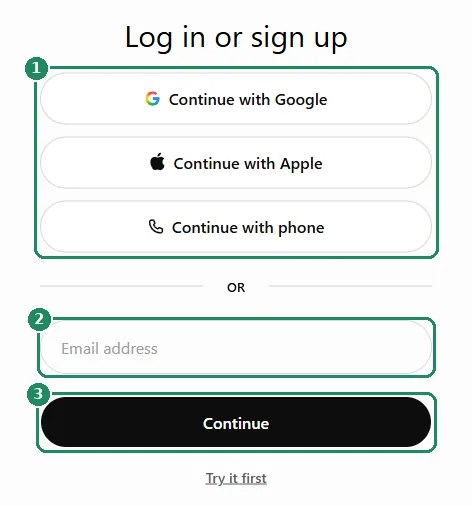
The login window (“Log in or sign up”) starts with three buttons: “Continue with Google”, “Continue with Apple” and “Continue with phone”. Below them are the “Email address” field and the “Continue” button. If even this window does not load properly, the browser is the likely cause; if the error comes after “Continue”, it is the login method or the account's status; if it stops after the password, it is the verification code or the second step.
The verification code does not arrive
On a new device, from an unusual location or after a longer break, ChatGPT sends a six-digit code to the account's email address. The most common reasons it does not arrive:
- The email went to a filter. Check the spam, promotions and social folders as well. The official email comes from an OpenAI address (for example [email protected]).
- An outdated code was entered. Codes are valid only for a short time, and requesting a new code invalidates the previous one. Only the code in the latest email works.
- The email went to a different address. With a Google or Apple account, the code goes to the address of that account. With a hidden Apple address (@privaterelay.appleid.com), look in the forwarding mailbox.
- Company email filters it. With a work address, the email may be quarantined; the administrator can release it.
- Too many code requests. After many attempts in a row, the system temporarily stops sending new codes. Wait, then request a single new code.
A wrong login method is reported, or an empty account opens
Symptom: after “Continue”, a message says the account was created with a different method, or the login works but earlier conversations and the subscription are gone. Cause: separate accounts can belong to the same email address (for example one with a password and one with Google), and OpenAI does not merge them.
- Log out, and in a private window try “Continue with Google”, “Continue with Apple” and the email address route one after another.
- Old sign-up or billing emails show which address and method the account was created with.
- In the account that was found, the email address it belongs to can be checked under “Settings” → “Account”.
- Google or Apple login can be added later to an account with a password if the email address matches. If multi-factor authentication is on, it has to be turned off first.
The device for the second verification step is lost
Symptom: the password is correct, but ChatGPT asks for a code from the authenticator app, and the phone has been lost or replaced.
- Recovery code: the backup code received when multi-factor authentication was turned on can be entered on the code page, using the option that offers another method. Afterwards, set up a new authenticator: Two-step verification and passkeys in ChatGPT.
- Another method that is set up: if a passkey or approval on another device is also set up, choose that.
- The code is always wrong: the phone's clock may be off; turn on automatic time setting.
- No backup at all: contact OpenAI support through the chat window at help.openai.com. Verification can take several days.
- Advanced Account Security: if it is on, only the backup passkey, security key or recovery key can help; support cannot restore access in this case.
The browser will not let you through
- Repeated checks or a white page: an ad or script blocker, a privacy extension, or blocked JavaScript or cookies can cause this. A private window without extensions helps, or allowing chatgpt.com in the blocker.
- It used to work, now it shows an error: stored cookies or the cache may be corrupted. Delete the site data for chatgpt.com and openai.com in the browser settings, then log in again.
- VPN or proxy: because of the shared IP address, the login may look suspicious, or the system may detect a country where ChatGPT is not available. Turn off the VPN. About the country error: “Unsupported country” error in ChatGPT: where it is unavailable and why.
- Android app: the login opens through Chrome. If Chrome is disabled or outdated, the login gets stuck; update and enable it.
Other error messages
- Temporary restriction after many attempts: you may have to wait up to an hour.
- Deleted or deactivated account: a deleted account cannot be restored (see: Permanently deleting a ChatGPT account). OpenAI announces a deactivation by email; if it is a mistake, an appeal can be made through support.
- The password suddenly stops working, or a notification arrives about an unknown login: someone else may have accessed the account: Hacked ChatGPT account: first steps.
If it doesn't work
Why does ChatGPT ask for a code every time I log in?
If the browser deletes cookies when it closes, or the login happens in a private window or through a VPN, ChatGPT sees a new device every time.
I forgot my password. What should I do?
At the password step, choose “Forgot password?” and follow the instructions in the email. With Google or Apple login there is no ChatGPT password; request a new password from the provider instead. Details: Resetting or changing your ChatGPT password.
I cannot log in to the phone app, but the web works. What could be the reason?
Usually the app is outdated, or a different button was chosen than on the web. Update the app and use the same login method.