Two-step verification and Authenticator for a Microsoft account
Two-step verification (also called multi-factor authentication) means that on a new or unknown device, a second proof is needed besides the password: an approval in Microsoft Authenticator or a code. A stolen password alone is then not enough to sign in. In return, the account's backup methods must be set up carefully, because with two-step verification turned on, the owner also has a harder time getting back in after losing the phone.
In this article
What changes after turning it on?
- Sign-in on a new device: the second proof is required every time the sign-in is not from a trusted device. On the owner's own computer already in use, the system asks for it less often.
- Password reset: two different pieces of security info are needed, for example an Authenticator code and a code sent to a secondary address. If only the password is known, according to the help, regaining access can take up to 30 days.
- Recovery form: the “Recover your account” form cannot be used with two-step verification turned on, which makes the backup methods especially important.
- Older programs: an app or device that cannot ask for a code (for example an old email program or an Xbox 360) needs an app password; this is covered in the article Setting up a passwordless Microsoft account.
Preparation: Authenticator and backup information
Microsoft recommends having three pieces of security info on the account. Microsoft is gradually phasing out text messages from sign-in and recovery for personal accounts, and adding a new phone number is not always possible, so the reliable choice is Authenticator, another email address and a passkey. Install Authenticator on the phone, then, when adding an account in the app, choose the personal Microsoft account and sign in. New security info can be added in the “Manage how I sign in” section with the “Add a new way to sign in or verify” option.
Turning on two-step verification
- Sign in on the account.microsoft.com/security page.
- Choose “Manage how I sign in”; the account may ask for another verification at this point.
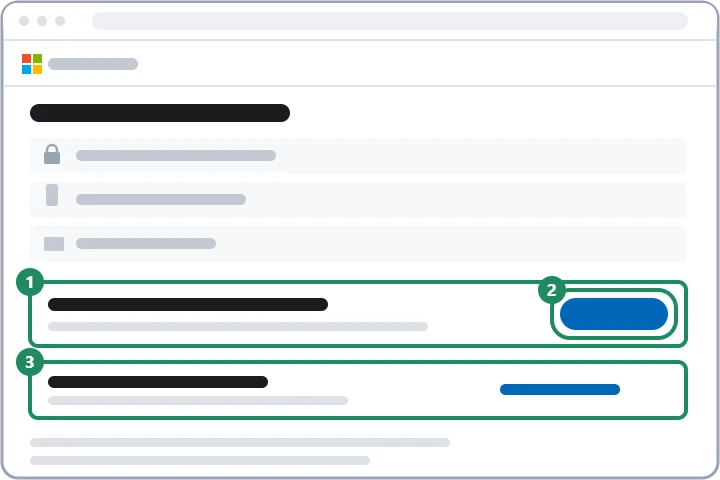
- Scroll down to the “Additional security” section and choose “Turn on” under “Two-step verification”.
- Follow the steps shown on the screen. If Authenticator is being set up now, scan a QR code with the phone; this proves that the phone is really in the owner's hands.
- At the end, the page may show a recovery code: save it right away (see below).
Signing in with Authenticator
On a new device, the phone receives a notification after the password. Select or type the number shown on the sign-in screen in Authenticator, then approve with a fingerprint, face or PIN. If the phone has no internet access, the one-time code shown in the app, which changes every 30 seconds, can be typed instead. Never approve a request that the owner did not start, even if they arrive in a series: this is a trick used by an attacker who knows the password, and the password must be changed immediately. More details: Signing in to a Microsoft account.
Recovery code
The recovery code is a 25-character code that can be used to recover the account even if none of the security info is available.
- On the page for managing sign-in methods, scroll to the “Recovery code” section and choose “Generate a new code”.
- Print the code or write it on paper, and do not store it on the device used to sign in.
- Generating a new code invalidates the previous one; an existing code cannot be downloaded or requested again.
- To use it, continue at sign-in via the other ways to sign in and type the code in the field offered. With two-step verification turned on, changes then take effect after 30 days.
Before replacing a phone
- On the old phone, turn on Authenticator backup in the settings: on iPhone it saves the data to iCloud, on Android to a personal Microsoft account.
- The backup can only be restored on the same system: it cannot be moved from iPhone to Android (or the other way round); in that case, the accounts have to be added again one by one.
- On the new phone, start the recovery in Authenticator before signing in, and sign in with the same account (on iPhone, the same iCloud account).
- For personal accounts that also use passwordless sign-in, only the account name is restored, so sign in again and verify the account.
- Only wipe the old phone once a sign-in has been successfully approved on the new one. Then remove the old phone's entry from the security info.
If it doesn't work
What should be done if the phone is lost and there was no backup?
Sign in with another piece of security info (secondary email address, passkey) or with the recovery code, then remove the old phone and add the new one. If none of these is available, getting back in is difficult: Resetting a forgotten Microsoft account password.
Can all security info be replaced at once?
It can, but the account then works in a limited way for 30 days. Replacing items one at a time is recommended: Recovery email and phone number in a Microsoft account.
Can another authenticator app be used?
Yes, the Microsoft account also works with other authenticator apps that generate codes. Number approvals and passwordless sign-in, however, are tied to Microsoft Authenticator (and on Android to the Outlook app as well).